The Importance of File Permissions in WordPress Security
Why the Wrong File Permissions Make Your Site Vulnerable to Hacks
Dec
Why the Wrong File Permissions Make Your Site Vulnerable to Hacks
In the intricate ecosystem of web hosting, security is a multifaceted beast, often challenged by overlooked fundamentals. Among the most critical, yet frequently misunderstood, aspects are **file permissions**. These seemingly simple numerical configurations are, in reality, the digital bouncers for your website, dictating who gets to read, write, or execute your precious code and data. A misstep here isn’t just a minor oversight; it’s an open invitation for malicious actors to compromise your entire digital presence.
As seasoned experts at DebugPress.com, we constantly encounter websites suffering from easily preventable vulnerabilities stemming directly from incorrect file permissions. This guide will demystify file permissions, illuminate the severe risks associated with misconfigurations, and arm you with the actionable knowledge to fortify your website against a common, yet devastating, attack vector. Our goal is to empower you to implement the **principle of least privilege**, ensuring your site remains secure, stable, and resilient.
The Unseen Guardians: Understanding File Permissions Basics
Before we delve into the threats, it’s paramount to grasp the fundamental concepts of file permissions. Think of them as a sophisticated access control system for your server’s files and directories.

Decoding Access Levels: Read, Write, Execute
Each file and directory on your server is assigned three primary access rights:
- Read (r): This permission allows users to view the contents of a file or list the contents of a directory. Without read access, a user cannot even see what’s inside a folder.
- Write (w): This is perhaps the most sensitive permission. For files, it allows modification or deletion of content. For directories, it allows creating, renaming, or deleting files and subdirectories within it.
- Execute (x): For files, execute permission allows the file to be run as a program or script. For directories, it allows users to ‘enter’ the directory, navigate through it, and access its contents (provided they also have read permission).
User Categories: Owner, Group, Others
These access levels are not universal; they are assigned to specific categories of users:
- Owner: This is the user account that owns the file or directory. Typically, this is your user account on the server (e.g., via FTP or SSH).
- Group: This refers to a group of user accounts that share access to the file or directory. All members of the group share the same permissions. The web server process (e.g., `www-data`, `apache`) often belongs to a specific group.
- Others (Public): This category encompasses everyone else on the server who isn’t the owner or a member of the designated group. This is the broadest category and should always have the most restricted permissions.
The Numeric Shorthand vs. Symbolic Notation
Permissions are commonly represented in two ways:
- Symbolic: You’ll see this in commands like `ls -l` as `rwxr-xr-x`. This clearly shows `r` for read, `w` for write, and `x` for execute, separated for owner, group, and others.
- Numeric (Octal): This is the most common way to *set* permissions. Each permission has a numerical value:
- Read (r) = 4
- Write (w) = 2
- Execute (x) = 1
- No permission = 0
These values are summed for each user category (owner, group, others). For example:
- `7` (4+2+1) = Read, Write, Execute
- `6` (4+2+0) = Read, Write
- `5` (4+0+1) = Read, Execute
- `4` (4+0+0) = Read Only
So, `755` means:
- Owner: `7` (rwx)
- Group: `5` (r-x)
- Others: `5` (r-x)
Distinct Roles: Files vs. Directories
While the `r`, `w`, `x` permissions apply to both, their “execute” meaning differs critically:
- For Files: Execute means the ability to run the file as a program. This is essential for scripts (PHP, Python, Bash) but generally not for static content like images, CSS, or HTML.
- For Directories: Execute means the ability to traverse or “step into” the directory. Without execute permission on a directory, you cannot access its contents, even if you have read permission for the files within it. Think of it as opening a locked door; you can see the door (read), but you can’t go through it (execute) to see what’s inside.
The Principle of Least Privilege: Your First Line of Defense
The core philosophy of robust security is the **Principle of Least Privilege (PoLP)**. This dictates that every user, program, or process should be granted only the minimum necessary permissions to perform its function, and no more.

What PoLP Means in Practice
Applying PoLP to file permissions means asking: “Does this user or process *absolutely need* write access to this file?” If the answer is no, then restrict it. This minimizes the attack surface. If an attacker gains control of a low-privilege account or process, their ability to inflict damage is severely constrained.
Why Overly Permissive is a Catastrophe Waiting to Happen
The opposite of PoLP is what we commonly see leading to site compromises: overly permissive settings. These are permissions that grant more access than necessary, often out of convenience or misunderstanding. For instance, setting a file to `666` (read/write for everyone) or a directory to `777` (read/write/execute for everyone) creates gaping security holes.
The Dangers of `777` (and Why It’s Universally Condemned)
Let’s be unequivocally clear: **NEVER set file or directory permissions to `777` in a production environment.** This grants read, write, and execute permissions to *everyone* – the owner, the group, and crucially, all others (the public). This is effectively putting a “hack me” sign on your server, making it trivial for any malicious script or attacker who can reach your server to:
- Modify your website’s source code.
- Inject malicious scripts or backdoors.
- Upload new malicious files (webshells, malware).
- Delete critical content, leading to defacement or data loss.
- Execute arbitrary commands on your server.
Unmasking the Threat: How Misconfigurations Lead to Exploits
Understanding the basics is one thing; recognizing how these misconfigurations directly translate into exploitable vulnerabilities is another. Attackers actively scan the internet for these weak points, often using automated bots.
Overly Permissive Files: A Direct Path to Code Injection
When files crucial to your website’s operation (e.g., `index.php`, theme files, plugin files) have permissions like `666` or `777`, it’s an immediate red flag.
An attacker can:
- Modify Website Source Code: Inject malicious JavaScript into your theme files, redirecting visitors to spam sites or stealing sensitive user data.
- Webshell Uploads: If a PHP file is writable by the web server user, a minor vulnerability in your application can be leveraged to write a complex “webshell” script, giving the attacker a powerful interface to control your server through their browser.
- Defacement: Changing the `index.php` or `index.html` file to display an attacker’s message or propaganda.
Overly Permissive Directories: The Gateway to Total Compromise
Directories with permissions like `777` are even more dangerous than individual files. They allow attackers to manipulate the entire structure and content of that directory. This facilitates:
- Upload New Malicious Files: The most common attack, where a webshell or other malware is uploaded directly into a publicly accessible directory (like `wp-content/uploads/`). This can lead to complete site takeover.
- Delete Critical Content: Wiping out your entire website’s content, theme, or plugin files.
- Create New Directories for Exploits: Setting up command-and-control folders or staging areas for further attacks.
- Privilege Escalation: By providing write access to the web server user, a vulnerability in a web application can be leveraged to write files anywhere on the server that the web server user has permissions for, potentially leading to a full server compromise.
Studies show that **80%** of web application attacks leverage writeable directories to upload webshells, making this a critical area of focus for security.
The Silent Exposure: Sensitive Files and Credentials
Certain files contain highly sensitive information that should never be broadly accessible:
- Configuration Files (e.g., `wp-config.php`): This file contains your database name, username, password, and host. If permissions are too loose (e.g., `644` allowing “others” to read), an attacker could easily read your database credentials and gain full access to your data. Secure permissions like `640` or `600` are crucial here.
- Log Files: Incorrectly secured log files can inadvertently reveal sensitive information about your server’s configuration, errors, or even user activity that attackers can leverage.
Exploiting the Web Server Process: From Vulnerability to Server Takeover
The web server (Apache, Nginx) runs as a specific user (e.g., `www-data` on Debian/Ubuntu, `apache` on CentOS/RHEL). If this web server user has excessive write permissions on your site’s files or directories, a seemingly minor vulnerability in your web application (like an unpatched plugin or a poorly coded custom script) can be escalated dramatically. An attacker exploiting such a vulnerability could then use the web server’s elevated permissions to:
- Write malicious files outside of the expected web root.
- Modify system configuration files.
- Execute arbitrary commands on the server.
This transforms a simple web application vulnerability into a full server compromise, impacting not just your site but potentially other sites on the same server.
Real-World Scenarios: Where Permissions Go Wrong
These theoretical threats manifest in various practical scenarios, often due to a lack of awareness or misconfiguration within popular systems.
CMS Ecosystems: WordPress, Joomla, Drupal
Content Management Systems (CMS) like WordPress are frequently targeted due to their widespread use. While the core CMS itself has relatively good security practices, the expansive plugin and theme ecosystem can introduce vulnerabilities:
- Plugin/Theme Recommendations: Some third-party plugins or themes might insecurely recommend setting certain directories to `777` for “ease of installation” or to allow uploads. This is a severe anti-pattern that you should always reject.
- Automated Update Processes: Occasionally, an automated update process (for core, plugins, or themes) can inadvertently reset permissions incorrectly, especially if there are underlying server configuration issues.
- Insecure Uploads: The `wp-content/uploads` directory often needs write permissions for the web server user. If this directory also has executable permissions (e.g., `777`), an attacker who can upload a malicious file (e.g., via a compromised contact form or image upload) can then execute it, leading to a webshell.
Shared Hosting: The Double-Edged Sword
Shared hosting environments, by their nature, involve multiple users on the same physical server. While reputable hosts implement robust isolation, misconfigurations can still pose risks:
- Cross-Account Exploitation: If a hosting environment has poor user segregation and one user’s site has overly permissive files, a vulnerability on that site could potentially be leveraged to affect other sites on the same server, particularly if the web server process has broad permissions.
- `public_html` Permissions: Incorrect permissions on the root web directory (`public_html` or `htdocs`) can expose the entire site structure and allow broader access.
Unintended Consequences: FTP Client Misuse
Many FTP clients (FileZilla, Cyberduck, etc.) offer an option to set file permissions when uploading or creating files. While convenient, this can be dangerous if the default settings are overly broad. Accidentally applying `777` permissions to newly uploaded files can instantly create a vulnerability.
The Human Factor: Lack of Awareness
Perhaps the most significant factor leading to permission-related vulnerabilities is a simple lack of awareness. **Research indicates that over 60% of compromised websites had at least one critical file or directory with insecure permissions prior to the attack.** Many site owners and even some developers are unaware of the critical role file permissions play in overall website security, leaving them open to attack.
It’s alarming to note that **70%** of website owners are unaware of the file permissions on their server, leaving them open to attack.
Fortifying Your Defenses: Best Practices for Secure File Permissions
Implementing secure file permissions is not complex, but it requires diligence and adherence to best practices. By following these guidelines, you can significantly reduce your attack surface and protect your website.
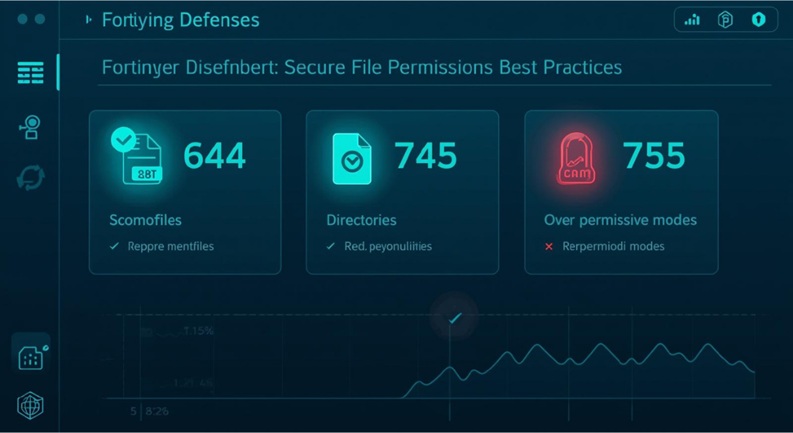
The Golden Rules: Recommended Permissions for Files and Directories
These are general, safe recommendations for most web environments. Always consult your hosting provider if you encounter issues, as specific server configurations might require slight adjustments.
- Files: `644`
- Owner: Read and Write (`rw-`)
- Group: Read Only (`r–`)
- Others: Read Only (`r–`)
This setting allows the owner (you) to modify files, while the web server can read them to display your website. No one else can write to them.
- Directories: `755`
- Owner: Read, Write, and Execute (`rwx`)
- Group: Read and Execute (`r-x`)
- Others: Read and Execute (`r-x`)
This allows the owner full control over the directory. The web server (and others) can navigate through and read the contents of the directory but cannot write new files or delete existing ones.
- Absolutely **NEVER `777`** for any file or directory in a production environment. Seriously.
Specialized Permissions for Sensitive Files
For files containing critical credentials or configurations, even tighter restrictions are warranted:
- Sensitive Files (e.g., `wp-config.php`, database configuration files): `640` or `600`
- `640`: Owner has Read/Write, Group has Read, Others have No access. This is ideal if your web server process belongs to the designated group.
- `600`: Owner has Read/Write, Group has No access, Others have No access. This is the most restrictive and often preferred for critical files where the web server doesn’t explicitly need group read access. The web server will still be able to read it if it runs as the owner or has specific sudo permissions, but it greatly limits exposure.
The choice between `640` and `600` often depends on how your hosting environment is configured. Consult your host if unsure.
Strategic User and Group Management
Proper user and group ownership are just as important as permissions:
- Dedicated, Low-Privilege Web Server User: Ensure your web server process (Apache, Nginx) runs under a dedicated user (e.g., `www-data`) that has minimal privileges on the server. This limits what an attacker can do if they compromise the web server.
- Content Ownership: Generally, your website files and directories should be owned by your user account (e.g., `yourusername:yourgroupname`), not by the web server user. The web server user should only have read access to most files and write access only to specific directories (like `wp-content/uploads/cache`) where it needs to create or modify files.
Proactive Monitoring and Auditing
Security is an ongoing process, not a one-time setup:
- File Integrity Monitoring (FIM): Implement FIM solutions (e.g., OSSEC, Tripwire, or WordPress security plugins with FIM features) to detect unauthorized changes to critical files and their permissions. These tools can alert you immediately if a file’s hash or permissions change.
- Regular Audits: Periodically review file and directory permissions, especially after major updates, new plugin/theme installations, or changes to your hosting environment. Automated scripts can help identify non-compliant permissions.
- Within 24 hours of being made available online, poorly secured websites can become targets of automated bot attacks designed to exploit common vulnerabilities like incorrect file permissions.
Mastering `chown` and `chmod`: Command-Line Essentials
For those comfortable with SSH, `chown` and `chmod` are your powerful allies:
- `chmod` (Change Mode): Used to change file permissions.
- To set `644` for a file: `chmod 644 filename.php`
- To set `755` for a directory: `chmod 755 directoryname`
- To recursively set `644` for all files in current directory and subdirectories: `find . -type f -exec chmod 644 {} ;`
- To recursively set `755` for all directories in current directory and subdirectories: `find . -type d -exec chmod 755 {} ;`
- `chown` (Change Owner): Used to change the owner and group of files.
- To change owner to `youruser` and group to `yourgroup` for a file: `chown youruser:yourgroup filename.php`
- To recursively change owner and group for a directory: `chown -R youruser:yourgroup directoryname`
FAQs: Addressing Your Burning Questions
Let’s tackle some of the most common queries regarding file permissions to solidify your understanding.
What are the ideal file permissions for a typical website?
Generally, **`644` for files** and **`755` for directories** are the recommended safe defaults. For highly sensitive files like your `wp-config.php`, **`640` or `600`** are preferred to prevent unauthorized reading of database credentials.
Why should I never use `777` permissions?
**`777` grants universal read, write, and execute permissions to everyone** (owner, group, and all others/public). This means any script, process, or malicious actor who can access your server can modify, delete, or execute any file or directory with `777` permissions, leading to swift and complete compromise of your site and potentially your server.
Can a plugin or theme change my file permissions?
Yes, sometimes plugins or themes might attempt to change permissions during installation or updates, especially if they need to create or write to specific directories (e.g., cache folders, upload directories). While some changes are necessary, you should be wary of any plugin that suggests or forces overly permissive settings like `777`.
How do I check and change file permissions?
You have several options:
- FTP Client: Most FTP clients (e.g., FileZilla) allow you to right-click on files/directories, select “File Permissions” or “Change Permissions,” and enter the numeric value.
- Hosting Control Panel: Many hosting control panels (cPanel, Plesk) include a “File Manager” where you can view and modify permissions graphically.
- SSH Commands: For advanced users, SSH provides the most direct and powerful control. Use `ls -l` to view permissions and `chmod` to change them.
Does incorrect file permission affect SEO or site performance?
While incorrect permissions do not directly impact SEO rankings or site performance, they are a direct route to security breaches. A hacked website will quickly suffer from **defacement, malware injection, phishing attempts, or complete downtime**. Any of these consequences will severely damage your SEO, user trust, and site performance, making proactive permission management a crucial aspect of overall website health.
Conclusion: The Undeniable Imperative of Proper Permissions
File permissions are not just a technical detail; they are a foundational pillar of your website’s security. Overlooking them or adopting a lax attitude toward their configuration is akin to leaving your front door unlocked in a bustling city – an open invitation for trouble. As we’ve explored, incorrectly configured permissions, particularly overly permissive settings like `777`, provide direct and exploitable pathways for attackers, leading to data theft, site defacement, and even full server compromise.
Embrace the **Principle of Least Privilege**, meticulously apply recommended permissions like **`644` for files** and **`755` for directories**, and always ensure sensitive files like `wp-config.php` are locked down with **`640` or `600`**. Regularly audit your permissions, understand your server’s user and group configurations, and empower yourself with the knowledge of tools like `chmod` and `chown`. By doing so, you’re not just preventing potential hacks; you’re building a resilient, trustworthy digital presence that stands strong against the ever-evolving threat landscape. Your website’s security, and ultimately its success, depends on it.