How to Safely Update WordPress Core Plugins and Themes
The First Rule of Updates: A Guide to Backing Up Your Site
Jan
The First Rule of Updates: A Guide to Backing Up Your Site
Forget the myth that “it won’t happen to me.” The reality is stark: Over 60% of small businesses that suffer major data loss close down within six months. (Source: National Archives & Records Administration). This figure alone should underscore the profound impact data loss can have. Our objective is to equip you with the knowledge and actionable steps to build an impenetrable defense for your website, turning potential catastrophe into a minor inconvenience.
The Strategic Imperative: Why Backups Are Your Digital Insurance Policy
Considering your website as a critical business asset reveals the true value of a proactive backup strategy. It’s not just about restoring files; it’s about maintaining trust, preventing financial loss, and ensuring your digital presence remains uninterrupted.

Mitigating Operational Risk: Safeguarding Against the Unseen
Every interaction with your website introduces a potential point of failure. Updates to WordPress core, theme installations, plugin activations, or even a seemingly innocuous content edit can trigger unforeseen conflicts. Backups act as a definitive rollback point, allowing you to quickly revert to a stable state should an update break your site or introduce vulnerabilities. This proactive stance is your primary defense against:
- Human Error: Inadvertent deletions, misconfigurations, or incorrect code snippets can instantly cripple a site.
- Software Conflicts: The vast ecosystem of themes and plugins, while powerful, can lead to incompatibilities, particularly after updates.
- Malicious Attacks: Despite robust security measures, hacks are a constant threat. Backups provide a clean slate for recovery, ensuring you can rebuild without lingering compromises. Approximately 30,000 new websites are hacked every day, highlighting the constant threat landscape. (Source: Sucuri/Forbes).
- Hardware Failure: Server outages, corrupted drives, or hosting provider issues can render your site inaccessible.
Ensuring Business Continuity: Minimizing Downtime and Maintaining Trust
For any business, downtime translates directly into lost revenue, diminished search engine rankings, and eroded customer trust. Imagine an e-commerce site offline during a peak sales period; the financial ramifications can be staggering. The average cost of website downtime for e-commerce businesses can range from $5,000 to $100,000 per hour, depending on scale. (Source: Gartner estimates). A well-executed backup and recovery plan ensures that:
- Your site’s operations can resume with minimal interruption, protecting your revenue streams.
- Customer and stakeholder confidence remains intact, as they perceive your business as reliable and professionally managed.
- Your search engine authority is preserved, as prolonged downtime can severely impact SEO rankings.
Protecting Your Digital Assets: The Irreplaceable Value of Data, Content, and Configuration
Beyond the immediate operational aspects, your website is a repository of invaluable digital assets. This includes not just your public-facing content but also proprietary configurations, user data, and the cumulative effort of your branding and development. Protecting these assets is paramount. A comprehensive backup strategy ensures the preservation of:
- User-Generated Content: Comments, forum posts, user profiles, and submitted data.
- Proprietary Content: Articles, images, videos, product descriptions, and intellectual property.
- Custom Code and Configurations: Theme modifications, plugin settings, and server-level optimizations.
- Transaction Data: For e-commerce sites, this is critical for order fulfillment and customer service.
Deciphering Your Data Landscape: What to Include in Your Backup Strategy
A truly effective backup isn’t just a copy of “everything.” It’s a precise capture of all critical components that constitute your live website. Understanding these components is the first step toward a robust recovery plan.

The Database Core: The Dynamic Heart of Your Site’s Content and Settings
For dynamic websites, particularly those built on CMS platforms like WordPress, the database (typically MySQL or MariaDB) is the central repository for almost all dynamic content and configuration. This includes:
- Posts and Pages: All your published and drafted content.
- Comments: User interactions and discussions.
- User Data: User accounts, roles, and metadata.
- Plugin and Theme Settings: Crucial configurations that define your site’s functionality and appearance.
- Internal Links and SEO Data: Taxonomy relationships, meta descriptions, and more.
Without an intact database, your site will either display errors or revert to a blank slate, regardless of your file system integrity. It is the single most important component to back up regularly.
The File System: Themes, Plugins, Media Uploads, and Core Application Files
While the database holds dynamic content, the file system comprises all the static files that make your site function and look the way it does. For a typical WordPress installation, this includes:
- WordPress Core Files: The foundational PHP files, JavaScript, and CSS that power the CMS itself.
- Themes: Both your active theme (especially if it’s a child theme with customizations) and any inactive themes.
- Plugins: All installed plugin files, which provide extended functionality.
- Media Uploads: Images, videos, documents, and other media stored in the
wp-content/uploadsdirectory. - Custom Files: Any custom scripts, CSS, or other files you’ve manually added to your site’s directory.
A complete file system backup, combined with your database, forms the bedrock of a full site restoration.
Configuration Parameters: Server Settings, .htaccess, and Critical Environment Variables
Often overlooked, critical configuration files dictate how your server processes requests and how your application interacts with its environment. These are paramount for maintaining security, performance, and specific functionalities.
.htaccess:For Apache servers, this file controls redirects, permalinks, security rules, and caching directives. A corrupted or missing.htaccesscan break your site’s navigation or expose vulnerabilities.wp-config.php:This WordPress-specific file contains crucial database connection details, security keys, and various configuration constants. It’s the gateway to your database.- Server-level configurations: While less common for shared hosting users, dedicated server or VPS owners should also consider backing up custom Nginx or Apache configuration files, PHP-FPM settings, and other relevant environment variables.
Full vs. Incremental: Tailoring Your Approach for Efficiency and Recovery Speed
The type of backup you implement influences storage requirements and restoration speed:
- Full Backups: A complete copy of your entire site (database, file system, configuration). Ideal for initial backups, major updates, or as a weekly/monthly cornerstone. While comprehensive, they consume more storage and take longer to create.
- Incremental Backups: After an initial full backup, incremental backups only save files that have changed since the last backup (whether full or incremental). This is highly efficient in terms of storage and speed, making daily or even hourly backups feasible. However, restoring from incremental backups requires the full backup and all subsequent incremental backups in sequence.
- Differential Backups: Similar to incremental, but they save all changes since the last full backup. This means fewer files to track during restoration compared to incremental, but they grow larger over time.
For most WordPress sites, a combination of weekly full backups and daily incremental backups offers a balanced approach to efficiency and recovery.
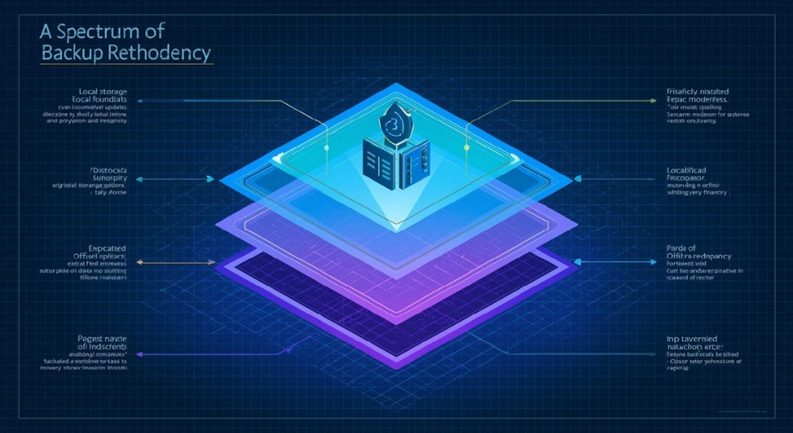
Architecting Resilience: A Spectrum of Backup Methodologies
The method you choose for backing up your site will depend on your technical proficiency, hosting environment, and the complexity of your website. A multi-pronged approach often provides the best resilience.
Host-Provided Solutions: Understanding Their Scope, Limitations, and Recovery Protocols
Many web hosts offer backup services as part of their package. These can be convenient but often come with caveats:
- Convenience: Often automatic, easily accessible via your hosting control panel.
- Limitations: May have retention limits (e.g., only 7-14 days), may not include all components (e.g., specific database tables), or may only be available for a fee.
- Recovery Protocols: Understand if restores are self-service or require host intervention, and the potential associated costs or delays.
- Lack of Control: You might not have fine-grained control over what is backed up or the backup frequency.
While host backups can be a useful layer of defense, never rely solely on them. They are a convenience, not a comprehensive strategy.
Application-Specific Plugins: Streamlining the Process for CMS Platforms
For WordPress, Joomla, Drupal, and other CMS platforms, dedicated backup plugins offer an excellent balance of automation, control, and ease of use. These tools are designed to understand the intricacies of your CMS:
- WordPress Examples: UpdraftPlus, Duplicator, Solid Backups (formerly BackupBuddy). These plugins can backup files, databases, and configuration settings, often directly to cloud storage.
- Joomla/Drupal: Similar solutions exist, tailored to their respective architectures.
- Features: Scheduled backups, exclusion rules (e.g., exclude large log files), cloud integration, and one-click restore functionality.
When selecting a plugin, prioritize those with strong reputations, active development, and proven recovery capabilities.
Manual Operations: FTP for Files, phpMyAdmin for Databases – The Hands-On Approach
For those who prefer a granular, hands-on approach, or for troubleshooting, manual backups remain a viable option. While more time-consuming, they offer complete control.
- Files via FTP/SFTP: Use an FTP client (e.g., FileZilla) to download your entire website directory. Ensure hidden files (like
.htaccess) are also included. - Databases via phpMyAdmin: Access phpMyAdmin (usually through cPanel) and export your database. Select the database, click ‘Export,’ choose ‘Custom’ for more options (e.g., compression, specific tables), and download the .sql file.
- SSH/Command Line: For advanced users, SSH access allows for highly efficient file transfer (e.g.,
scp,rsync) and database dumps (mysqldump).
Manual backups are excellent for ensuring you understand every component, but they are not scalable for frequent, automated protection.
Server-Side Tooling: Leveraging cPanel, Command-Line Utilities for Granular Control
Beyond manual FTP/phpMyAdmin, your hosting control panel and server-side utilities provide powerful backup options:
- cPanel/Plesk Backup Tools: Most control panels offer full or partial backup utilities that bundle files, databases, and sometimes email accounts into a single archive. These are often downloadable.
rsync: A command-line utility for Linux/Unix systems that efficiently synchronizes files and directories between two locations. It’s excellent for incremental backups, only transferring changed blocks.mysqldump: The standard command-line utility for backing up MySQL/MariaDB databases. It allows for highly customized dumps, including specific tables, compression, and fine-tuning.- Scheduled Cron Jobs: Server-side scripts can be automated using cron jobs to run
rsyncormysqldumpcommands at specified intervals, pushing backups to a remote location.
These methods are favored by developers and system administrators for their efficiency and customizability, particularly for large or complex sites.
Fortifying Your Archives: Strategic Storage and Security for Backups
Creating backups is only half the battle. Where and how you store them, and how you protect them, determines their true value in a disaster scenario. The goal is redundancy and accessibility.

The 3-2-1 Rule: Implementing the Gold Standard for Backup Redundancy
The 3-2-1 rule is the industry’s gold standard for backup strategy. It dramatically reduces the risk of data loss by ensuring multiple points of failure would need to occur simultaneously to compromise your backups:
- 3 Copies of Your Data: The original data (your live site) plus two backup copies.
- 2 Different Media Types: Store your backups on at least two different storage types (e.g., local hard drive and cloud storage, or an external drive and a network drive). This guards against a failure vector specific to one media type.
- 1 Offsite Copy: At least one copy of your backup must be stored in a physically separate location from your live site and other backups. This protects against localized disasters like fire, flood, or a data center outage.
Adhering to the 3-2-1 rule is non-negotiable for serious website management in 2025/2026.
Diversified Storage Vectors: Local, Network, and Cloud Platforms
To implement the 3-2-1 rule effectively, you’ll need a range of storage options:
- Local Storage: Saving backups to your local computer or an external hard drive. Convenient for quick access but vulnerable to local disasters or hardware failure.
- Network Attached Storage (NAS): A dedicated server on your local network for storing files. Offers more robust local redundancy than a single external drive but still shares the same physical location.
- Cloud Platforms: The quintessential offsite storage solution. Services like AWS S3, Google Cloud Storage, Dropbox, OneDrive, and specialized backup services (e.g., Backblaze) offer high availability, scalability, and geographic redundancy. They are typically integrated directly with backup plugins or server-side scripts.
Distributing your backups across these vectors ensures that no single point of failure can render all your recovery options moot.
Encryption and Access Controls: Securing Your Backups from Unauthorized Access
A backup is only as good as its security. Storing unencrypted backups, especially offsite, is a significant security risk. Always ensure:
- Encryption at Rest: Your backup files should be encrypted when stored on any medium, particularly cloud storage. Many backup plugins and cloud providers offer this feature.
- Encryption in Transit: Use secure protocols (SFTP, HTTPS) when transferring backups to remote locations.
- Strong Access Controls: Use strong, unique passwords for all backup storage accounts. Implement Two-Factor Authentication (2FA) wherever available. Limit access permissions to only those necessary for backup and restore operations.
- Regular Key Rotation: If you manage encryption keys, rotate them periodically.
Versioning Strategies: Retaining Multiple Points in Time for Granular Recovery Options
Simply having “a backup” isn’t enough. You need the *right* backup. Versioning allows you to retain multiple historical snapshots of your site, giving you flexibility in recovery.
- Why Versioning? If you only keep the latest backup, and that backup contains corrupted data or malware (which you might not discover for days), your only option is to restore the corrupted version.
- Retention Policy: Decide how many daily, weekly, and monthly backups you will keep. A common strategy might be 7 daily, 4 weekly, and 6 monthly backups.
- Granular Recovery: With versioning, you can revert to a point just before a problematic update, a malware infection, or an accidental deletion, rather than losing days or weeks of data.
The Ultimate Test: Validating Your Disaster Recovery Capabilities
A backup strategy is theoretical until it’s proven. The true value of your efforts lies in your ability to successfully restore your site when a disaster strikes. This requires proactive testing and clear planning.

Proactive Restoration Drills: Simulating Failure Scenarios to Ensure Successful Recovery
Don’t wait for a crisis to discover your backups are incomplete or unrecoverable. Regular restoration drills are crucial:
- Set Up a Staging Environment: Create a copy of your live site on a separate staging server or local development environment.
- Perform a Test Restore: Use your latest backup to restore your site to this staging environment.
- Verify Functionality: Thoroughly check the restored site for integrity. Does it load correctly? Are all pages, posts, images, and functionalities present and working? Test forms, e-commerce checkout, and user logins.
- Document Issues: If you encounter problems, document them and refine your backup or restoration process.
These drills, ideally conducted quarterly or bi-annually, provide confidence in your strategy and identify weaknesses before they become catastrophic.
Understanding Recovery Protocols: Familiarity with Your Host’s and Application’s Restore Procedures
When panic sets in, you need clarity. Familiarize yourself with every step of the recovery process for each component of your strategy:
- Host Restore Procedures: Know exactly how to initiate a restore from your host’s control panel, or how to contact their support for assistance.
- Plugin Restore Guides: Understand the specific steps for restoring from your chosen backup plugin.
- Manual Restoration Steps: If relying on manual backups, have documented steps for uploading files via FTP and importing databases via phpMyAdmin or command line.
- DNS Propagation: Understand the process of updating DNS records if you need to switch servers or domains during recovery.
Crafting a Disaster Recovery Plan: A Documented Blueprint for Rapid Incident Response
A documented Disaster Recovery Plan (DRP) is your comprehensive guide when disaster strikes. It removes guesswork and enables rapid, coordinated response.
- Key Information: Include contact information for your host, developers, and critical team members.
- Step-by-Step Restoration: Detail the exact sequence of steps for restoring your site from each backup source.
- Communication Plan: Outline how you will communicate with customers, stakeholders, and internal teams during downtime.
- Testing Schedule: Define the frequency and scope of your backup verification and restoration drills.
- Post-Mortem Analysis: Include steps for analyzing the incident after recovery to prevent future occurrences.
Companies with robust disaster recovery plans are nearly twice as likely to survive a major outage compared to those without. (Source: Deloitte). This emphasizes the direct correlation between preparedness and business resilience.
Establishing Your Operational Protocol: Best Practices for Sustainable Backups
A backup strategy isn’t a one-time setup; it’s an ongoing operational protocol. Implementing these best practices ensures your strategy remains effective and sustainable.

Automate for Consistency: Eliminate Human Error and Ensure Timely Execution
Manual backups are prone to forgetfulness and inconsistency. Automation is the cornerstone of reliability:
- Scheduled Plugins: Utilize backup plugins with robust scheduling features.
- Server Cron Jobs: For advanced users, configure server-level cron jobs to run backup scripts (e.g.,
mysqldump,rsync). - Managed Hosting: Leverage hosting providers that offer automated, configurable backup solutions.
- Set-and-Forget (with Verification): Once automated, ensure you have a system for verifying these automated processes.
Verify for Integrity: Regular Checks to Confirm Backups Are Complete and Restorable
An incomplete or corrupted backup is worse than no backup, as it instills a false sense of security. Verification is critical:
- Log Checks: Review backup logs generated by your plugin or server scripts for errors or warnings.
- File Size Comparison: Periodically compare the size of your backup archives to previous ones or the live site. Significant discrepancies can indicate an issue.
- Spot Checks: Occasionally open backup files (e.g., the .sql database file) to ensure they are not empty or corrupted.
- Actual Restores: As discussed, regular test restores to a staging environment are the ultimate verification.
Document Your Process: A Clear Guide for All Team Members Involved in Site Management
Knowledge silos are dangerous. Documenting your backup strategy ensures continuity, even if key personnel change:
- Step-by-Step Instructions: Detail how backups are created, stored, and restored.
- Login Credentials: Securely store access details for backup services and storage platforms.
- Contact Information: List key contacts for support or emergencies.
- Policy Guidelines: Define backup frequency, retention periods, and verification schedules.
Store this documentation securely and make it accessible to authorized team members.
Continuous Review: Adapting Your Backup Strategy to Evolving Threats and Site Growth
The digital landscape is constantly changing. Your backup strategy should not be static:
- Site Growth: As your site expands with more content, users, or functionality, evaluate if your backup frequency and storage capacity are still adequate.
- New Technologies: Incorporate new backup tools, cloud storage options, or security best practices as they emerge.
- Threat Landscape: Stay informed about new types of cyber threats (e.g., new forms of ransomware) and adjust your security and backup protocols accordingly.
- Performance Review: Periodically assess the efficiency of your backups – are they impacting site performance? Can they be optimized?
FAQs
How frequently should my site be backed up to maintain optimal resilience?
The optimal backup frequency depends directly on how often your site changes and how critical those changes are. For highly dynamic sites with daily content updates, user interactions, or e-commerce transactions, daily incremental backups are essential, ideally complemented by weekly full backups. For static informational sites that rarely change, weekly or bi-weekly full backups might suffice. The guiding principle is: if you cannot afford to lose the data generated or modified within a certain timeframe (e.g., an hour, a day), then that should be your maximum backup interval.
What is the practical difference between a full backup and an incremental backup in a recovery scenario?
In a recovery scenario:
- Full Backup: Provides a complete, standalone snapshot of your entire site at a specific point in time. Restoration is straightforward: you simply restore that one full backup. This is the fastest method for full site recovery but consumes more storage.
- Incremental Backup: Only saves the changes made since the *last* backup (which could be a full or another incremental backup). To restore, you first need the last full backup, and then *all* subsequent incremental backups in the correct sequence. This makes restoration more complex and potentially slower if many incremental backups are involved, but it is highly efficient for frequent backups as it saves storage and time during creation.
For strategic resilience, a combination (e.g., weekly full, daily incremental) often offers the best balance.
Can I solely rely on my web host’s backup service, or is a multi-layered approach necessary for strategic security?
You should never solely rely on your web host’s backup service. While host backups are a valuable layer of defense and convenience, they come with inherent limitations: retention policies, potential for vendor lock-in, scope (they might not back up everything you need, like specific custom configurations), and the risk that a widespread issue affecting your host could also compromise their backup infrastructure. A multi-layered approach, incorporating host backups, a robust third-party backup plugin, and offsite storage adhering to the 3-2-1 rule, is absolutely necessary for strategic, comprehensive security.
What is the recommended retention policy for backups, and how many versions should I keep?
A robust retention policy typically involves keeping a tiered structure of backups:
- Daily Backups: Keep the last 7 to 14 daily backups. This provides granular recovery points for recent changes or issues.
- Weekly Backups: Retain the last 4 to 8 weekly backups. This covers a broader timeframe for more significant problems.
- Monthly Backups: Keep the last 6 to 12 monthly backups. These are crucial for long-term archival, compliance, or recovering from issues that might go unnoticed for a longer period.
- Annual Backups: For critical business records or compliance, consider retaining select annual backups for several years.
This strategy offers ample recovery points without excessive storage bloat. The exact number can be adjusted based on your site’s change frequency, regulatory requirements, and storage budget.
My website is exceptionally large; what are the most efficient backup strategies for extensive data sets?
For exceptionally large websites, efficiency is key. Consider these strategies:
- Server-Side Tools: Leverage command-line utilities like
mysqldumpwith compression (gzip) for databases andrsyncfor files.rsyncis highly efficient as it only transfers changed data blocks. - Incremental/Differential Backups: Prioritize these to minimize data transfer and storage, especially for daily routines.
- Exclusion Rules: Configure your backup system to exclude non-essential files (e.g., temporary caches, large log files, development assets not used on production).
- Staging Backups: If your site has a staging environment, consider backing up the staging site rather than the massive live site for some verification steps, if data is synchronized.
- Dedicated Backup Solutions: For enterprise-level sites, specialized backup services or infrastructure (e.g., AWS Backup, Google Cloud Backup) can provide more robust, scalable solutions.
- Database Optimization: Regularly optimize your database to keep it lean, which aids in faster backups.
What are the most reliable methods for automating the entire backup and verification process?
The most reliable methods combine automation with rigorous verification:
- Dedicated Backup Plugins/Software: For CMS platforms, reputable plugins (like UpdraftPlus, Solid Backups for WordPress) offer robust scheduling, cloud integration, and often email notifications for success/failure.
- Server-Side Cron Jobs: For maximum control and efficiency on VPS/Dedicated servers, schedule shell scripts (using
mysqldump,rsync, andtarfor compression) via cron. These scripts can then push backups to cloud storage using tools likerclone. - Managed Hosting Solutions: Premium managed WordPress hosts often include highly optimized, automated backup systems that are seamlessly integrated and perform well.
- Automated Verification Scripts: Beyond simply creating backups, implement secondary scripts that regularly check backup file integrity (e.g., using checksums), verify file sizes, and even perform automated test restores to a sandboxed environment to ensure recoverability.
- Monitoring and Alerting: Integrate backup logs with your site’s monitoring system (e.g., email alerts, Slack notifications) to be immediately notified of any backup failures or anomalies.
Conclusion
The adage, “An ounce of prevention is worth a pound of cure,” finds its most profound application in the world of website management. Backups are not merely a contingency plan; they are the proactive embodiment of resilience, the non-negotiable cornerstone of any successful digital strategy. From mitigating human error to fending off malicious attacks, from ensuring business continuity to protecting invaluable digital assets, a meticulously crafted and consistently maintained backup protocol is your ultimate safeguard.
As you navigate the complexities of website evolution in late 2025 and early 2026, remember that the true strength of your backup strategy lies not just in its creation, but in its **verification**. Regularly test your restoration procedures, adhere to the 3-2-1 rule for storage redundancy, and automate your processes to eliminate human error. By embracing this strategic imperative, you move beyond mere site management to truly safeguarding your digital future, ensuring that your website remains a robust and reliable asset, no matter what challenges the digital landscape throws its way.