The Ultimate Guide to Fixing the White Screen of Death (WSoD)
Resolving the WSoD: A Complete Guide to Increasing the WordPress PHP Memory Limit
Oct
When your WordPress site suddenly goes blank — showing nothing but a white screen — it can be deeply disconcerting. This phenomenon is commonly known as the White Screen of Death (WSoD). One frequent cause behind it is exhausting the PHP memory limit. In this guide, you’ll learn exactly how that happens, how to diagnose it, and step-by-step methods to safely increase your PHP memory limit to resolve and prevent the WSoD errors.
What is the White Screen of Death (WSoD) and Why Memory Matters
The White Screen of Death is when your site displays a blank white page with no error messages or content. It often happens because WordPress has hit a fatal error before it can send any output to the browser — often due to PHP running out of memory.
In WordPress, PHP memory is the amount of memory a PHP script is allowed to use. When plugins, themes, and core operations exceed that limit, errors like:
Fatal error: Allowed memory size of X bytes exhausted may occur, or the site will just go blank. Many shared hosts set low memory defaults, and as you add complex plugins or run heavy operations (e.g. imports, backups, page builds), the limit gets breached.
Because WordPress often suppresses raw errors on live sites (showing instead a generic “A critical error occurred” message), identifying memory issues requires careful debugging.
Signs You Are Hitting PHP Memory Limits
Here are common clues that a memory limit issue is behind your site problems:
- A completely blank front end or admin area (WSoD)
- “Fatal error: Allowed memory size exhausted” message (if error display on)
- “Critical error” on the site with vague wording
- Failure to install or activate plugins
- Media uploads or large imports failing
- Plugins or page builders suddenly not working
If you see these, a memory limit issue is a strong candidate.
How to Check Your Current PHP Memory Limit
Before you try increasing memory, you should see what you’re working with.
Methods to check memory limit:
- Site Health (WordPress dashboard): Go to Tools → Site Health → Info → Server section. It lists PHP memory limit.
- phpinfo file: Create a file named
phpinfo.phpin your site root with content:<?php phpinfo(); ?>Access it in browser (
yourdomain.com/phpinfo.php) and look formemory_limit. - Check
wp-config.php: Look fordefine('WP_MEMORY_LIMIT', 'XXM');or similar lines. - Ask your host or check hosting control panel (cPanel / MultiPHP ini editor) — many hosts show PHP configuration there.
If your limit is low — e.g., 64M or 128M — then you likely need to raise it.
How to Increase the WordPress PHP Memory Limit
Here are several methods. Use them in order, testing your site after each. Always take a backup before editing core files.

Method A: Edit wp-config.php (Recommended for WordPress-level change)
- Connect via FTP / File Manager.
- Open
wp-config.phpfile in root. - Look for (or add) just above the line
/* That’s all, stop editing! Happy blogging. */:define( 'WP_MEMORY_LIMIT', '256M' ); - Save and upload.
This tells WordPress to request up to 256MB of memory. However, if your host’s PHP configuration is capped at a lower value, this setting will not override it.
Method B: Edit php.ini or a custom php.ini
If your host allows:
- Locate
php.ini(often in root or server config). - Add or edit:
memory_limit = 256M - Save changes and restart PHP / web server (Apache, Nginx, or PHP-FPM) as needed.
If in shared hosting, some hosts allow a custom php.ini placed in your site folder.
Method C: Use .htaccess (Apache only)
If your server allows PHP directives via .htaccess:
Add this to your root .htaccess file:
php_value memory_limit 256M Warning: If your host doesn’t allow this, it may trigger a 500 Internal Server Error. Always back up .htaccess first.
Method D: Host Control Panel / MultiPHP INI Editor
Some hosting dashboards (cPanel, Plesk) allow you to change memory_limit directly:
- Go to Select PHP Version or PHP Settings
- Find
memory_limitand set to desired value - Save / Apply changes
- Your server updates accordingly
Kinsta, for instance, lets you set it via their dashboard.
Method E: If Nothing Works — Ask Your Host or Upgrade
If none of the above methods take effect:
- Your host is enforcing a lower cap that you can’t override.
- You may need to upgrade to a higher hosting tier or switch host.
- Contact support and ask them to raise PHP memory limit for your site.
Even if you set WP_MEMORY_LIMIT to 256M, if your host caps at 128M, you will still be constrained.
After Increasing Memory: Verify & Monitor
- Check Site Health again to see if the PHP memory limit increased.
- Reproduce the scenario that triggered WSoD originally (e.g. plugin activation, import).
- Ensure there are no errors in
debug.log(if debugging was enabled). - Monitor your site usage; if memory usage continues to spike, there may be a plugin or code problem requiring optimization.
Best Practices & Preventing Memory Exhaustion
Increasing memory is helpful, but not a full cure if the underlying cause is inefficient code or too many heavy plugins. Here are prevention tips:
- Deactivate or remove unused or resource-heavy plugins
- Optimize images, minimize HTTP calls, and use caching
- Use a good caching plugin or server-side caching
- Offload tasks like backups, imports, scanning to cron jobs or external services
- Use well-coded themes & plugins
- Monitor memory usage regularly
- Use staging environments to test before pushing to production
Frequently Asked Questions on PHP Memory Limits
Q: How high should I set the memory limit?
A: 128M is okay for many sites, but 256M is a safer default for sites using page builders, WooCommerce, or many plugins.
Q: Will this slow down my site?
A: No. You’re just giving PHP more headroom. But if scripts are poorly coded, they may use more memory unnecessarily.
Q: Why won’t my setting take effect?
A: Because your host’s PHP configuration overrides your setting. That means server-level memory caps are in place.
Q: Should I also set WP_MAX_MEMORY_LIMIT?
A: You can for admin/backend operations, especially on multisite. But only if your host allows it.
Sample Code Snippets (Copy & Use)
// In wp-config.php

define( 'WP_MEMORY_LIMIT', '256M' );
; In php.ini

memory_limit = 256M
# In .htaccess (Apache only)

php_value memory_limit 256M
Conclusion
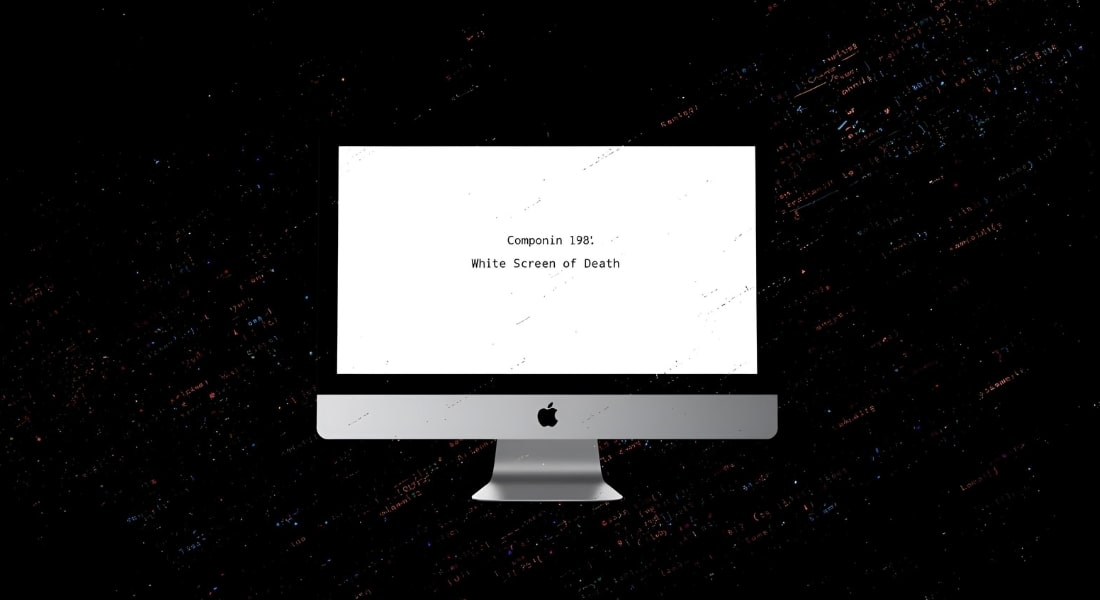
The White Screen of Death might look catastrophic, but it’s often caused by something simple — your website running out of memory.
By checking your current PHP memory limit and safely increasing it, you can often bring your WordPress site back to life within minutes.
If the problem persists or you’d rather not handle it yourself, DebugPress can help. Our experts specialize in WordPress emergency fixes, malware cleanup, and performance optimization — so your site stays healthy, fast, and secure.