Why is My WordPress Site So Slow? (15 Common Causes and Fixes)
Is Your Hosting the Problem? How to Tell if You Need to Upgrade Your Plan
Oct
Every website relies on a foundation of good web hosting. Often overlooked until disaster strikes, hosting is the digital landlord that provides the space, security, and computational power for your site to exist. When performance issues arise—slow loading times, frequent errors, or site downtime—the immediate suspect is usually a faulty plugin, an unoptimized image, or bad code. However, the root cause is frequently a single, fundamental problem: your hosting plan is simply inadequate for your current traffic, resource demands, or complexity.
Outgrowing your hosting is a sign of success, but failing to upgrade is a guarantee of future failure. A stretched hosting plan compromises user experience (UX), damages Search Engine Optimization (SEO) rankings, and creates endless frustration for the site owner.
This guide provides a systematic, diagnostic approach for website owners to definitively determine if their current hosting is the bottleneck. We will detail the tell-tale symptoms of an overwhelmed server, explain the key metrics to monitor, and map out the upgrade path from shared hosting to more powerful solutions.
The Telltale Symptoms of an Overloaded Host
If your website exhibits the following symptoms regularly, it’s a strong indication that you have exhausted your current plan’s resources.
1. Persistent and Severe Slowdowns
Slow loading times are the most obvious symptom of a strained server. While local optimizations (like image compression and caching) can help, these server-related slowdowns are chronic and often occur during peak hours.
- Time-to-First-Byte (TTFB) is High: TTFB measures the time it takes for your server to respond to a user request. If your TTFB consistently exceeds 300ms (which you can check using tools like Google PageSpeed Insights or GTmetrix), it means the server is struggling to process the initial request, typically due to an overwhelmed CPU or insufficient RAM.
- Site Slows During Updates/Backups: When you run simple administrative tasks, the entire site crawls. This happens because these tasks are CPU-intensive, and your plan doesn’t have enough dedicated power to handle the background load alongside user traffic.
- Database Queries are Slow: The site struggles to retrieve dynamic information (posts, product listings). This often points to the database server on shared hosting being overworked by too many neighboring sites.
2. The Frequent 5xx Errors
These errors are HTTP status codes that indicate server-side failures, which is often a direct result of resource exhaustion.
- 503 Service Unavailable: This is the classic sign of a server overloaded or down for maintenance. On shared hosting, this usually means your site has hit its CPU or RAM limit and the host has temporarily throttled or shut down the application process.
- 508 Resource Limit Is Reached: Common on cPanel-based cloud/shared hosting, this error explicitly states that your account has used up the allowed percentage of resources (CPU or physical memory).
3. Logouts and Session Failures
If you or your team are frequently logged out of the admin panel, or if dynamic features like shopping carts randomly lose items, the problem might be session management failure due to memory strain. The server lacks the available RAM to maintain open sessions for all users simultaneously.
4. Hosting Provider Notifications
The most direct indicator: Your hosting company starts sending you warnings. These messages often detail that your site is “consistently exceeding resource thresholds” or “consuming disproportionate CPU time.” This is the host’s way of saying, “Your site is negatively impacting our other customers, and you must upgrade or move.”
Diagnostic Tools: Checking Your Metrics
To move beyond symptoms, you need hard data. These metrics determine exactly where your hosting plan is falling short.

1. Check Your Hosting Control Panel Analytics
Log into your hosting control panel (cPanel, Plesk, etc.) and look for “Metrics,” “Resource Usage,” or “Performance.” Pay attention to the graphs for the last 30 days.
- CPU Usage: If the graph frequently spikes to 100% or stays above 70% for sustained periods, your processor is bottlenecked.
- Physical Memory (RAM) Usage: If this metric consistently hits the maximum allowed limit, your server cannot efficiently handle data processing, leading to slowdowns and 503 errors.
- Entry Processes (EP): This is the number of PHP processes running simultaneously. If you frequently hit the EP limit (common on cheap shared plans), new visitors will simply be denied access, resulting in slow or failed page loads.
2. Identify the MySQL/Database Load
Your database is often the first component to fail on an overloaded shared server.
- Check Slow Query Logs: If your host provides access (or you use a plugin like Query Monitor), look for queries that take longer than a few seconds. If the query is optimized but still slow, the disk I/O (Input/Output) or the shared database server itself is overworked.
- Monitor Connections: Too many persistent, open connections to the database (often from excessive traffic or bad bots) will stall the server.
3. Use External Performance Tools
Use specialized tools to measure server response time from an objective, third-party perspective.
- GTmetrix/Pingdom: These tools provide a clear TTFB metric, which isolates the server’s response time from front-end rendering issues. A high TTFB is your hosting’s report card.
- Google Search Console (GSC): Check the Core Web Vitals report. While most metrics here are front-end related, sustained poor performance across many pages can indicate a systemic server problem affecting rendering across the board.
The Upgrade Path: Moving Off Shared Hosting
If your diagnostics confirm consistent resource exhaustion, your current shared hosting plan is no longer suitable. It’s time to upgrade to a solution that provides dedicated or greater guaranteed resources.
1. Shared Hosting $\rightarrow$ Managed WordPress Hosting
If you run a WordPress site and the resource issues are manageable but persistent, moving to a Managed WordPress Host (e.g., Kinsta, WP Engine, SiteGround’s GrowBig/GoGeek) is the ideal first step.
- The Benefit: These environments are built specifically for WordPress. They often include server-side caching, better PHP/MySQL configurations, and specialized rules that drastically reduce the resource load of the CMS.
- The Downside: They are generally more expensive than basic shared hosting.
2. Managed WordPress $\rightarrow$ VPS (Virtual Private Server)
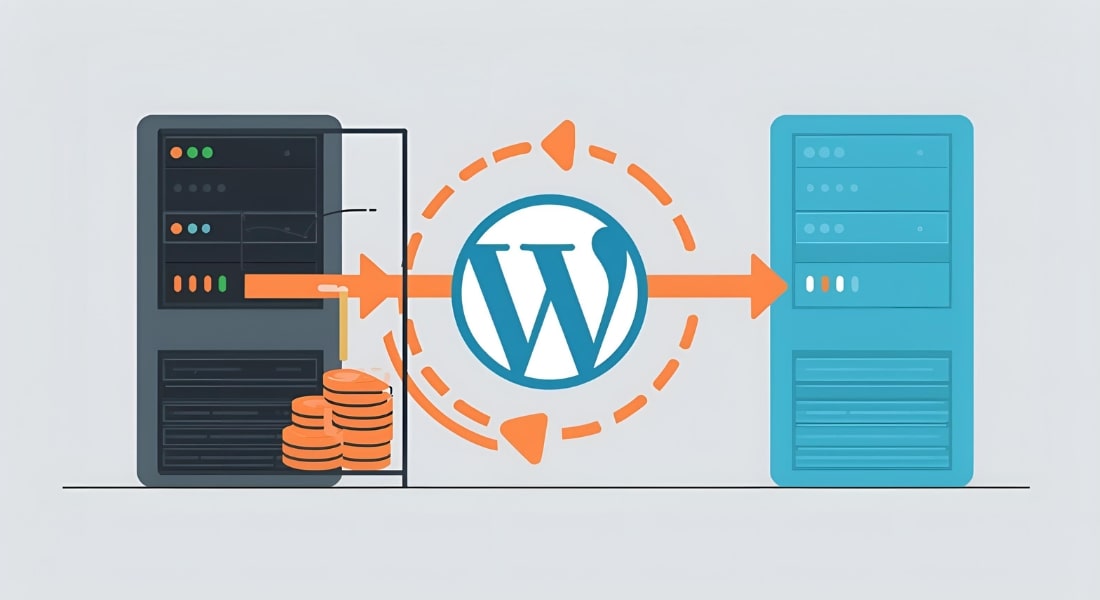
A VPS is the bridge between shared hosting and dedicated infrastructure. It’s a physical server that is partitioned into several independent virtual environments.
- The Benefit: You receive dedicated, guaranteed resources (CPU cores, RAM, and SSD storage) that are not shared with other users. This eliminates the “bad neighbor effect” common on shared hosting.
- The Downside: A VPS often requires technical skill for setup, configuration, and security maintenance, as it is typically an unmanaged environment.
3. VPS $\rightarrow$ Dedicated Hosting or Cloud Hosting
For mission-critical applications, enterprise e-commerce, or sites with millions of monthly visitors, full dedication or highly scalable cloud architecture is required.
- Dedicated Server: You get an entire physical server, providing maximum power, security, and customization. Cost is high, and technical maintenance is 100% your responsibility (unless managed).
- Scalable Cloud Hosting (AWS, Google Cloud, DigitalOcean): This offers infrastructure that can literally scale instantly to handle traffic peaks, paying only for the resources you consume. This requires the highest level of technical expertise for setup and optimization.
The Final Audit: Ensuring It’s Not Your Code
Before you spend money on an upgrade, you must perform a final check to ensure the problem isn’t a simple fix within your site’s code.
1. Optimize Your Database
An oversized, inefficient database can mimic a host resource problem.
- Action: Delete old post revisions, trash comments, and clean up orphaned metadata using a plugin like WP-Optimize or direct SQL queries.
2. Audit Plugins and Themes
A single, poorly coded plugin or an overly complex theme can consume vast amounts of CPU and memory.
- Action: Deactivate unnecessary plugins. Use a diagnostic tool like Query Monitor to identify which plugins are running the longest and heaviest database queries. Replace resource hogs with lightweight alternatives.
3. Implement Caching
Server-side caching is essential for managing load.
- Action: Ensure you have a robust caching solution enabled (e.g., LiteSpeed Cache, WP Rocket). Full-page caching dramatically reduces the number of requests that hit the database and PHP engine, effectively multiplying your server’s available capacity.

Conclusion
Determining if your hosting is the bottleneck requires a shift from anecdotal frustration to data-driven diagnostics. Consistent slowdowns, recurring 5xx errors, and frequent alerts regarding CPU/RAM exhaustion are not just temporary glitches; they are warning signs that your success has outpaced your current infrastructure. By monitoring key metrics like TTFB, CPU Usage, and Entry Processes, and by ensuring your own code is optimized, you can make an informed decision. Upgrading from a restrictive Shared Hosting plan to a resource-guaranteed Managed WordPress environment or a customizable VPS is not merely an expense, but a crucial investment that safeguards your SEO, preserves user trust, and ensures your website remains available, fast, and scalable for continued growth.