
Diagnosing Slow Plugins: How to Find What's Slowing Your Site Down
How to Use the GTmetrix Waterfall Chart to Find Slow-Loading Plugin Assets

Oct
The speed of a website is paramount to its success. Not only does it directly influence user experience—reducing bounce rates and improving conversions—but it is also a critical ranking signal for Google. For websites built on platforms like WordPress, plugins are often the hidden culprit behind performance bottlenecks. While they add essential functionality, every plugin introduces additional code, assets (CSS, JavaScript, images), and processing overhead.
Identifying which specific plugin is slowing down your site is often challenging, as the performance hit isn’t always obvious. This is where the GTmetrix Waterfall Chart becomes an indispensable tool. The Waterfall Chart provides a granular, chronological view of every single request made by your browser to load a page, visually exposing where time is being wasted. It transforms the abstract concept of “slow speed” into a concrete diagnosis of slow-loading files.
This comprehensive guide will explain the structure of the Waterfall Chart, detail the key metrics within it, and provide a systematic, actionable method for using this data to pinpoint and address slow-loading assets introduced by your plugins. By mastering this tool, you move beyond guesswork and achieve true performance optimization.
Understanding the GTmetrix Waterfall Chart
The Waterfall Chart is a visual representation of the entire page loading process, displayed as a sequence of horizontal bars. The goal is to see a chart where all bars are short and load rapidly in parallel.
The Structure: Rows and Columns
The chart is organized with each row representing a single file or asset request (e.g., an image, a CSS file, a JavaScript file, or a font). The columns provide critical timing information for that request.
The Bar Segments: What They Mean
Each horizontal bar is color-coded to break down the total time spent downloading that asset. Understanding these segments is key to diagnosis:
- Blocking (Grey): The time the browser spent waiting for a chance to start the request. This often indicates the browser is busy processing previous files (e.g., waiting for render-blocking CSS/JS to finish).
- DNS Lookup (Teal): The time spent converting the domain name (e.g.,
google.com) into an IP address. - Connection (Green): The time taken to establish a connection (TCP handshake) with the server.
- SSL/TLS (Purple): The time spent establishing a secure (HTTPS) connection.
- Waiting (Orange): The time spent waiting for the server to process the request and send the first byte of data (Time To First Byte, or TTFB). This is often the most important segment for server-side slowness.
- Receiving (Blue): The time spent actually downloading the asset (the file size transfer time).
The Target: When hunting for slow assets, you are primarily looking for bars that are excessively long in the Waiting (Orange) or Receiving (Blue) segments.
Identifying the Plugin Culprits: A Systematic Approach
Your goal is to quickly sift through the dozens or even hundreds of requests to find the few that are causing the most significant delays, and then tie those files back to their originating plugin.

Step 1: Analyze the Initial Load (The First 2 Seconds)
The most critical period for user experience and Core Web Vitals (LCP, FCP) is the first few seconds of the load.
- Filter by Timeline: Look at the requests that load before the DOM Content Loaded mark (the vertical blue line in the chart header). These resources are often render-blocking.
- Focus on the Waterfall Top: Examine the first 10-30 requests. Look for large JavaScript (.js) and CSS (.css) files. If these files are large (long blue “Receiving” bars) and are forced to load sequentially, they are slowing down the entire page painting process.
- Check for Excessive Waiting: Identify any request in the initial load with an unusually long Waiting (Orange) segment (over 200ms). This often indicates poor server processing or a database query initiated by a specific script.
Step 2: Tie the Asset Name to the Plugin Name
Plugin assets are usually named in a way that reveals their origin.
- Examine the URL: Click on a suspicious file request to view the full details, including the URL.
- Look for Plugin Directories: In the URL path, you will often find the plugin’s folder name.
- Example 1 (WordPress): If the URL contains
/wp-content/plugins/contact-form-7/includes/css/styles.css, the culprit is likely Contact Form 7. - Example 2 (E-commerce): If the URL contains
/wp-content/plugins/woocommerce/assets/js/frontend/cart.min.js, the slowdown is tied to a WooCommerce function.
- Example 1 (WordPress): If the URL contains
- Look for Developer Branding: Some plugins use unique acronyms or branded names in their asset files. (e.g., a file named
sg-lazy-load.jspoints to SiteGround Optimizer).
Action: Create a list of the 3-5 slowest loading assets, their load times, and their corresponding plugin names.
Step 3: Identify Redundant or Unnecessary Assets
Sometimes, the problem isn’t a slow file, but a file that shouldn’t be loaded at all.
- Check for Global Assets: Look for files from plugins that are designed for one page (like a contact form or a gallery) but are loading on every page of your site (including the homepage).
- The Bloated Plugin: Plugins like page builders (Elementor, Divi) or certain security scanners often inject large, combined CSS/JS files. If you see massive files loading very early, those are prime targets for optimization.
Diagnosis and Advanced Optimization with Waterfall Data
Once you have identified the slow assets, the Waterfall Chart data guides you to the correct solution.
Scenario A: Long “Waiting” Time (Orange Bar)
A long orange bar indicates the server took a long time to prepare the response.
- Diagnosis: The plugin code itself is inefficient. It is likely making excessive or slow database queries (PHP processing) before sending the file.
- Solution 1: Object Caching: Implement a server-side object cache (like Redis or Memcached, often available on premium hosting) to speed up database queries executed by the plugin.
- Solution 2: Server Review: If the orange bar is long for every request, the problem is your host, not the plugin. If it’s only long for specific plugin files, consider finding a more efficient alternative to that plugin.
Scenario B: Long “Receiving” Time (Blue Bar)
A long blue bar indicates the asset file size is too large, causing a slow download time.
- Diagnosis: Poor file optimization. The plugin developer bundled too much unnecessary code, or the assets are unminified.
- Solution 1: Minify and Compress: Use a performance plugin (like WP Rocket, Autoptimize, or LiteSpeed Cache) to minify the CSS and JavaScript files from the offending plugin. This removes unnecessary whitespace and comments, drastically shrinking the blue bar.
- Solution 2: Use Modern Formats: If the slow asset is an image, ensure it is compressed (WebP is best) and served via a CDN.
Scenario C: Long “Blocking” Time (Grey Bar)

A long grey bar indicates the file is delayed because the browser is waiting for other processes to finish.
- Diagnosis: Render-Blocking Resources. The files above the grey bar (often CSS or JS in the document
<head>) are blocking the browser’s main thread, delaying the loading of subsequent assets. - Solution 1: Defer/Async JavaScript: Use a performance plugin to add
deferorasyncattributes to the JavaScript files, telling the browser they can load without blocking the main rendering thread. - Solution 2: Critical CSS: Identify and inline the critical CSS needed for the visible portion of the page, and defer the rest of the site’s CSS. This prevents large stylesheets from blocking the page paint.
Scenario D: Too Many Requests (Excessive Rows)
If the Waterfall Chart has hundreds of rows, the site is making too many separate requests.
- Diagnosis: Plugin Bloat/Lack of Combination. Each plugin loads its own small CSS/JS files, creating “request overhead.”
- Solution: Concatenate/Combine: Use a performance plugin to combine the multiple small CSS files into one large file and the multiple JS files into another. This reduces 20 requests to 2, drastically simplifying the Waterfall and speeding up the connection phase.
The Optimization Workflow
Mastering the Waterfall Chart requires a continuous loop of testing and fixing:
- Test and Baseline: Run an initial GTmetrix test to establish the baseline LCP and full load time.
- Diagnose: Use the Waterfall Chart to identify the Top 3 slowest plugin assets (Waiting, Receiving, or Blocking time).
- Implement Fix: Apply the corresponding solution (e.g., enable minification for the CSS, defer the JS file, or upgrade hosting for high TTFB).
- Re-Test and Compare: Run a new GTmetrix test immediately after clearing your site and server cache. Compare the new Waterfall Chart to the baseline.
- Repeat: The Waterfall will reveal the next slowest element. Continue this process until you achieve the desired load time.
Conclusion
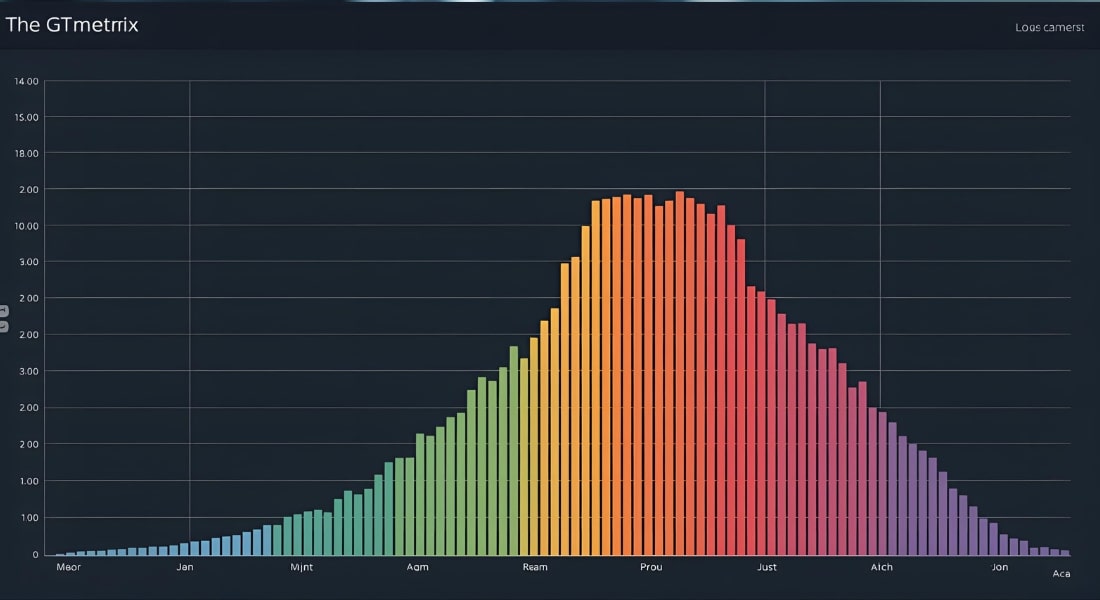
The GTmetrix Waterfall Chart is more than just a colorful graph; it is the definitive diagnostic tool for website performance. It translates abstract speed issues into measurable data, allowing site owners to pinpoint exactly which plugin asset—be it a slow-loading script, an overly large stylesheet, or a poorly executed database query—is dragging down the site’s speed. By systematically analyzing the bar segments (Blocking, Waiting, Receiving) and tying the file names back to their originating plugins, you can move from general performance anxiety to targeted, effective optimization, ultimately ensuring your website delivers a fast, seamless experience to every user.