How to Fix Image Upload Issues in WordPress
How to Increase the Maximum File Upload Size in WordPress
Dec
Optimizing Digital Capacity: A Strategic Blueprint for Expanding WordPress File Upload Limits
In the dynamic world of web development, a common yet critical bottleneck for many WordPress sites, especially those reliant on user-generated content or high-resolution media, is the default file upload limit. This often-overlooked constraint can severely impede operational efficiency, degrade user experience, and stifle digital growth. As a seasoned expert for DebugPress.com, we understand that merely increasing a number isn’t enough; a truly effective solution demands a **multi-pronged, strategic approach** that accounts for server architecture, security implications, and long-term scalability.
This comprehensive guide will walk you through a definitive blueprint for expanding your WordPress file upload limits. We’ll delve into the underlying configurations across PHP, your web server (Apache or Nginx), and the WordPress application layer itself, providing actionable insights and best practices reflecting late 2025/early 2026 standards. Our goal is to empower you with the knowledge to not just increase limits, but to do so responsibly, securely, and with a keen eye on sustained performance.
Remember, while the immediate goal is to accommodate larger files, the overarching objective is to bolster your site’s digital capacity without compromising its integrity. Let’s embark on this strategic journey to optimize your WordPress infrastructure.
I. Strategic Assessment: Understanding Current Limitations and Operational Needs
Before making any changes, a thorough understanding of your current environment and future requirements is paramount. Ad-hoc adjustments can lead to unforeseen issues; a strategic assessment lays the groundwork for a robust solution.
A. Identifying the Root Cause: Why Current Upload Limits Are Insufficient
The first step is always diagnosis. Are your users encountering “HTTP error” messages during uploads? Are specific file types consistently failing? Pinpointing the exact scenarios where current limits prove inadequate helps define the scope of your problem. Common drivers for needing higher limits include:
- High-Resolution Media: Photographers, videographers, and designers require larger image and video files.
- User-Generated Content (UGC): Forums, communities, and portfolio sites often involve users uploading substantial files.
- Theme/Plugin Imports: Importing large demo content or plugin data can hit upload ceilings.
- Document Sharing: Sites handling large PDF, PPT, or ZIP archives for download or collaboration.
Understanding these use cases dictates the necessary adjustments and helps justify the resource allocation.
B. Current State Analysis: Pinpointing Existing PHP and Web Server Configurations
Your WordPress site’s upload threshold is governed by a hierarchy of settings. Begin by checking your current limits within WordPress itself (Media Library, then “Add New”). However, these are merely reflections of deeper server-side configurations. You’ll need to identify the values of critical directives like upload_max_filesize, post_max_size, max_execution_time, and memory_limit in PHP, and client_max_body_size for Nginx or equivalent settings for Apache. This can often be found in your hosting control panel’s PHP settings or by creating a phpinfo.php file.
Actionable Step: Create a temporary phpinfo.php file (containing <?php phpinfo(); ?>) in your public HTML directory, access it via your browser, and search for these key directives. Remember to delete it immediately after use for security reasons.
C. Resource Inventory: Evaluating Server Capacity and Storage Implications
Increasing upload limits directly correlates with increased resource consumption. Consider your server’s:
- Available Disk Space: Larger files quickly consume storage.
- RAM (Memory): Processing large files, especially images, is memory-intensive.
- CPU: File processing, especially resizing or compression, demands CPU cycles.
- Bandwidth: More data in and out means higher bandwidth usage.
An honest assessment here prevents future performance degradation. **Over 30% of WordPress sites experience user-generated content upload failures due to insufficient server-side configuration, directly degrading user experience.** Neglecting resource planning can lead to a site that grinds to a halt under load.
D. Defining Target Parameters: Establishing Optimal Upload Limits
Based on your operational needs and resource inventory, define a realistic and optimal target upload limit. Avoid arbitrarily high values, as these can introduce unnecessary security and performance risks. If most of your large files are 10MB, setting a limit of 64MB or 128MB provides ample buffer without being excessive. Document your target parameters for PHP directives and web server settings, creating a clear objective for the implementation phase.
II. Core Protocols: Adjusting PHP Configuration for Enhanced Capacity
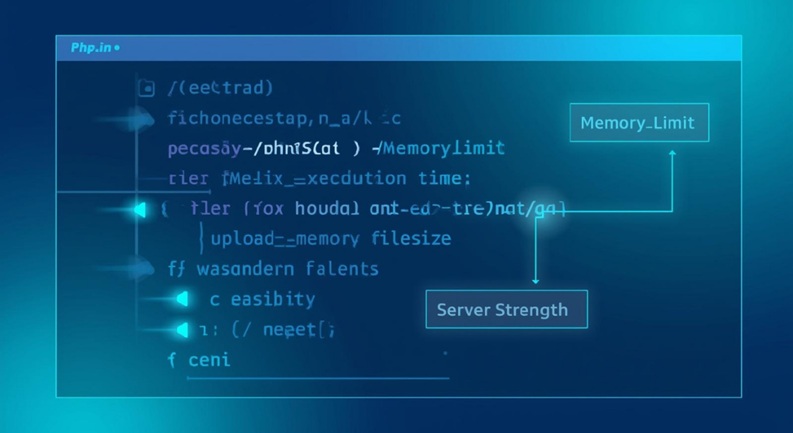
PHP is the backbone of WordPress, and its configuration directives are often the primary gatekeepers for file uploads. These settings directly control the maximum size of files that can be processed by your server’s PHP interpreter.
A. The PHP.ini Directive: Elevating upload_max_filesize and post_max_size
These two directives are fundamental. upload_max_filesize dictates the maximum size of an individual uploaded file. post_max_size, however, sets the maximum size of all POST data that PHP will accept, including files. It’s crucial that post_max_size is always equal to or greater than upload_max_filesize, otherwise, the upload will fail before PHP can even process the file.
Recommended Action: Increase these values gradually. For example, if your current limit is 2MB, try 32MB or 64MB. Always use ‘M’ for megabytes or ‘G’ for gigabytes (e.g., 32M, 1G).
    upload_max_filesize = 64M
    post_max_size = 64M
B. Execution Time Adjustments: Modifying max_execution_time and max_input_time
Large file uploads take time. If the upload process or subsequent server-side processing (e.g., image resizing) exceeds the server’s allowed execution time, the operation will be aborted. max_execution_time defines the maximum time a script is allowed to run. max_input_time specifies how long a script may spend parsing request data, including file uploads. **Misconfigured max_execution_time and memory_limit are responsible for approximately 25% of large file upload timeouts and fatal errors on PHP-based applications.**
Recommended Action: Increase these values to accommodate larger files and their processing. For complex operations or very large files, values like 300 or 600 seconds might be necessary.
    max_execution_time = 300
    max_input_time = 300
C. Memory Allocation Strategy: Increasing memory_limit
Processing large files, especially images with tools like ImageMagick or GD, can be very memory-intensive. If PHP runs out of allocated memory, it will throw a fatal error. The memory_limit directive sets the maximum amount of memory a script is allowed to consume.
Recommended Action: Increase this limit to prevent memory exhaustion errors during intensive upload operations. It should generally be higher than post_max_size. Common values include 128M, 256M, or even 512M for sites handling significant media.
memory_limit = 256M
D. Deployment Tactics: Accessing and Modifying php.ini
The method for modifying php.ini depends on your hosting environment:
- cPanel/Plesk: Many shared hosting providers offer a “MultiPHP INI Editor” or “Select PHP Version” tool within their control panel, allowing you to easily adjust these values for your domain. This is often the safest and easiest method.
- FTP/SFTP: For VPS or dedicated servers, or some shared hosts, you might directly access the
php.inifile via FTP/SFTP. The location varies (e.g.,/etc/php/{version}/fpm/php.inifor FPM or/etc/php/{version}/apache2/php.inifor Apache modules). Be cautious and back up the file before editing. - User.ini: In some environments, you may not have direct access to the main
php.ini. Instead, you can create or edit a.user.inifile in your public HTML (public_htmlorwww) directory. Directives set here override the mainphp.ini, but not all directives can be changed this way. - Direct Server Access (SSH): For advanced users on VPS/dedicated servers, SSH access allows direct editing of
php.inifiles using command-line editors like Nano or Vim.
After modifying php.ini, a PHP service restart (e.g., sudo systemctl restart php{version}-fpm for FPM or sudo systemctl restart apache2 for Apache) is usually required for changes to take effect.
III. Web Server Architecture: Orchestrating Nginx and Apache for Maximum Throughput

While PHP settings are critical, your web server also plays a gatekeeping role. If the web server rejects the incoming file due to size before it even reaches PHP, your PHP configurations will be moot.
A. Apache’s Mandate: Configuring .htaccess Directives
On Apache servers, particularly shared hosting environments where direct php.ini access is restricted, you can often override PHP values using php_value or php_flag directives in your site’s .htaccess file (located in the WordPress root directory). This method is convenient but can sometimes be slower due to per-request parsing.
Important Note: Not all hosting providers permit PHP value overrides via .htaccess. If these settings don’t take effect, you’ll need to contact your host.
    <IfModule mod_php7.c>
        php_value upload_max_filesize 64M
        php_value post_max_size 64M
        php_value max_execution_time 300
        php_value max_input_time 300
        php_value memory_limit 256M
    </IfModule>
Place these directives at the top of your .htaccess file, above the WordPress rules.
B. Nginx’s Strategy: Implementing client_max_body_size
For Nginx web servers, the crucial directive is client_max_body_size. This setting controls the maximum size of the client request body, which includes file uploads. If an upload exceeds this limit, Nginx will return a 413 “Request Entity Too Large” error before PHP ever sees the file. **Implementing proper client_max_body_size in Nginx can reduce premature connection termination for large uploads by up to 40%, enhancing data integrity and user satisfaction.**
Recommended Action: Add or modify the client_max_body_size directive within your Nginx server block (e.g., in /etc/nginx/sites-available/your_site.conf) or the main nginx.conf file.
    server {
        # ... other server configurations ...
        client_max_body_size 64M; # Must be equal to or greater than post_max_size
        # ... more configurations ...
    }
Ensure this value aligns with or exceeds your post_max_size PHP setting.
C. Restart Protocols: Ensuring Effective Configuration Propagation
After modifying web server configuration files (like .htaccess for Apache or .conf files for Nginx), a restart of the web server service is typically required for the changes to be applied. Failure to restart is a common reason why changes don’t take effect.
- Apache:
sudo systemctl restart apache2orsudo service apache2 restart - Nginx:
sudo systemctl restart nginxorsudo service nginx restart
If you’re on shared hosting, these restarts are usually handled automatically by the control panel, or you may need to ask your hosting provider to perform them.
IV. WordPress Integration: Fine-Tuning the Application Layer

While server-side adjustments are paramount, WordPress itself offers a few avenues for configuration, particularly useful for specific scenarios or when direct server access is limited.
A. Theme Functions File (functions.php): A Tactical Override
For some hosting environments, adding the following code to your theme’s functions.php file (or, ideally, a child theme’s functions.php) can provide a temporary or supplementary increase. This method works by attempting to override PHP settings at runtime. However, it’s generally less reliable and less performant than direct php.ini or web server modifications.
    // ONLY use if direct server config is not possible or as a last resort.
    // Ensure these values are lower than or equal to your actual server limits.
    @ini_set( 'upload_max_filesize', '64M' );
    @ini_set( 'post_max_size', '64M');
    @ini_set( 'max_execution_time', '300' );
    @ini_set( 'max_input_time', '300' );
    @ini_set( 'memory_limit', '256M' );
Critical Warning: Modifying functions.php directly in a parent theme will result in your changes being overwritten during theme updates. Always use a **Child Theme** for such customizations. This method is a last resort and should be used with caution, as server-level configurations are always superior.
B. Multisite Considerations: Navigating Network-Wide Settings
WordPress Multisite networks have their own set of considerations. The super admin can set network-wide upload limits, which override individual site settings. Navigate to Network Admin > Settings > Network Settings. Here, you’ll find “Max upload file size.” This value should not exceed the underlying PHP and web server limits. If your server-side limit is 64MB, setting this to 100MB will not work; WordPress will still be restricted by the server.
Key Principle: WordPress settings cannot magically bypass server-level restrictions. They can only impose further limits. Ensure your network settings reflect realistic server capabilities.
C. Plugin Deployment: Leveraging Specialized Tools for Controlled Increases
Several WordPress plugins are designed to assist with media management and sometimes offer interfaces to adjust upload limits. Plugins like “Increase Max Upload Filesize” or some advanced media library management plugins can simplify this process, particularly for users less comfortable with direct code edits. However, these plugins essentially attempt to modify the same PHP directives discussed above, often through .htaccess or functions.php methods. They are a convenience layer, not a bypass for server limitations.
Recommendation: While plugins can be helpful, understanding and directly managing your server’s configurations provides the most robust, performant, and reliable solution. Use plugins judiciously, primarily for enhanced media management rather than as a primary means to fundamentally alter server settings.
V. Post-Deployment Review & Security Posture

Implementing changes is only half the battle. A comprehensive post-deployment review and a heightened security posture are essential to ensure stability, performance, and protection against new vulnerabilities.
A. Verification Protocols: Confirming New Limits Are Active and Stable
After making all the necessary adjustments and restarting services, verify that the new upload limits are active. Check within your WordPress Media Library (“Add New”) to see the reported maximum upload size. More importantly, attempt to upload a file that is larger than your previous limit but smaller than your new one. Test with various file types and sizes to confirm stability.
Actionable Steps:
- Go to WordPress Dashboard > Media > Add New. Verify the displayed “Maximum upload file size.”
- Upload a test file close to your new limit (e.g., a 60MB file if your limit is 64MB).
- Check your
phpinfo.phpoutput (if still active) for the updated PHP directive values.
B. Performance Impact Analysis: Monitoring Server Load and Site Speed
Increased upload limits mean potentially larger files being transferred and processed. This can impact server load, especially during peak upload times. Monitor your server’s CPU, RAM, and disk I/O usage. Use tools like GTmetrix, PageSpeed Insights, or server monitoring solutions (e.g., New Relic, Grafana, built-in hosting metrics) to assess the impact on overall site speed and responsiveness. Adjust server resources or optimize your files if you notice degradation.
Key Metrics to Monitor:
- Average server response time.
- CPU utilization spikes during uploads.
- Memory consumption by PHP processes.
- Disk space usage and I/O.
C. Security Implications: Mitigating Risks with Larger File Uploads
Expanding upload limits inherently increases the attack surface. Larger files can potentially hide malware, exploit server vulnerabilities through oversized payloads, or contribute to denial-of-service (DoS) attacks by exhausting resources. A stringent **layered security** approach is non-negotiable.
- File Type Restrictions: Explicitly allow only necessary file types. Avoid allowing executable files (e.g.,
.exe,.php,.js) or archives (.zip,.rar) unless absolutely required and accompanied by robust scanning. - File Scanning: Implement server-side malware scanning for all uploaded files. Many web application firewalls (WAFs) and security plugins offer this feature.
- User Permission Management: Restrict file upload capabilities to trusted user roles only.
- Content Validation: For images, ensure they are legitimate image files (not renamed scripts). WordPress’s default media handling does a good job, but consider additional validation for very sensitive applications.
- Regular Backups: Maintain a robust backup strategy to quickly recover from any security incidents.
D. Best Practices for Resource Management: Scalable Solutions
For sites anticipating massive growth or requiring extremely large file capabilities (e.g., professional video platforms), continuously escalating server-side limits may not be the most sustainable or cost-effective solution. Consider:
- External Storage Integration: Offload media to dedicated object storage services like **Amazon S3, Google Cloud Storage, or DigitalOcean Spaces**. This significantly reduces load on your primary web server, scales almost infinitely, and is often more cost-effective for large volumes of data. Plugins like “WP Offload Media” make this integration seamless.
- CDN Implementation: Use a Content Delivery Network (CDN) to serve media files, reducing bandwidth usage on your origin server and improving delivery speed globally.
- Image Optimization: Implement automatic image compression and resizing (e.g., WebP conversion, lazy loading) to reduce the actual file sizes stored and served, even if the initial upload limit is high.
- User Quotas: For multisite networks or platforms with many contributors, implement user-specific storage quotas to prevent any single user from monopolizing resources.
By adopting these practices, you move beyond simply increasing limits to building a truly **scalable and resilient digital infrastructure**.
FAQs: Optimizing Digital Capacity
Q1: Will increasing the upload limit significantly slow down my WordPress site?
A1: Not inherently, but it can. The act of increasing the limit itself doesn’t slow your site. However, allowing users to upload larger files means more data transfer and potentially more server processing (e.g., image resizing). If your server resources (CPU, RAM, bandwidth) are insufficient for handling these larger files, or if many users upload large files simultaneously, you will likely experience performance degradation. It’s crucial to balance increased limits with adequate server resources and optimization strategies.
Q2: Is it inherently safe to set a very high upload limit, or are there critical security risks to consider?
A2: No, it is not inherently safe to set an arbitrarily high upload limit without corresponding security measures. While the need for larger files is legitimate, high limits increase the risk of malware uploads, resource exhaustion attacks (where an attacker floods your server with massive files to consume all disk space or bandwidth), and potential vulnerabilities from unexpected file types. Always implement robust security protocols: file type validation, server-side malware scanning, strict user permissions, and ensure your web server is configured to prevent oversized requests from reaching PHP.
Q3: I’ve attempted all suggested methods, but my upload limit hasn’t changed. What could be the underlying issue or bottleneck?
A3: If your upload limit remains unchanged after attempting all methods, the issue is likely a combination of factors or a constraint at a higher level than you’re currently addressing. Common culprits include:
- Hierarchy of Overrides: Multiple configuration files might be in play, with one overriding another (e.g., Apache’s main configuration overriding
.htaccess, or PHP-FPM’sphp.inibeing active instead of Apache’s PHP module’sphp.ini). - Missing Server Restart: Changes to web server (Apache/Nginx) or PHP-FPM services often require a restart to take effect.
- Hosting Provider Restrictions: Some shared hosting providers impose hard limits that cannot be overridden by users, even via
.htaccess. You might need to contact their support or upgrade your plan. - Incorrect File Location: Ensure you are editing the correct
php.inior.htaccessfile for your specific site/PHP version. - Misconfiguration: A syntax error in your configuration files can prevent changes from being applied.
Start by verifying values using a phpinfo.php file and carefully reviewing server error logs.
Q4: How can I implement different upload limits for various user roles or specific sections of my WordPress site?
A4: Implementing different upload limits per user role or section directly via core WordPress or server settings is complex and not natively supported out-of-the-box. The server-side limits (PHP and web server) are generally global. To achieve this granular control, you’ll need to:
- Use a Custom Plugin: Develop or leverage a specialized plugin that hooks into WordPress’s upload process (e.g., using the
upload_size_limitfilter) to dynamically check the user’s role or the content’s context and then enforce a lower limit if necessary. This would *not* increase the server’s global limit, but rather *restrict* it further for specific conditions. - Separate Subdomains/Sites: For very distinct requirements, consider setting up separate WordPress installations (or a Multisite with specific configurations) for sections with different upload needs, each with its own PHP and web server configurations if hosted on different virtual hosts.
Q5: When is it more strategically advantageous to consider external storage solutions (e.g., Amazon S3, Google Cloud Storage) instead of perpetually increasing server-side limits?
A5: It becomes strategically advantageous to consider external storage solutions when:
- Your site handles a very high volume of large files: Storing terabytes of media on your primary web server can become expensive, complex to manage, and slow down backups/migrations.
- Scalability is a primary concern: External object storage scales almost infinitely and automatically handles redundancy, offering superior reliability and scalability compared to a single server’s disk.
- You need global content delivery: Integrating with a CDN alongside external storage (which is often seamless) drastically improves content delivery speeds for users worldwide.
- Your web server is overwhelmed: Offloading media storage and serving reduces the load on your primary server, freeing up resources for dynamic content generation.
- Cost-effectiveness for storage: For very large volumes of data, object storage can often be more cost-effective than continually upgrading server disk space.
Generally, if your upload needs consistently exceed a few hundred megabytes per file, or your total media library size is growing into the hundreds of gigabytes, migrating to external storage becomes a wise long-term strategy.
Conclusion: Cultivating a Resilient Digital Foundation
Optimizing your WordPress site for expanded file upload limits is more than a technical fix; it’s a strategic investment in your digital capacity and user experience. As we’ve explored, a truly effective solution necessitates a **multi-pronged approach**, addressing configurations across PHP, your chosen web server, and the WordPress application itself. This journey requires a keen understanding of **risk mitigation**, ensuring that increased capacity doesn’t compromise server performance or security posture. By implementing **layered security protocols** and continuously assessing **performance optimization**, you forge a resilient infrastructure capable of handling growing demands.
Remember, the goal is not merely to lift a restriction, but to cultivate an environment that is both robust and flexible. By prioritizing **scalable solutions** like external storage integration for sustained growth and consistently applying the best practices outlined, you empower your WordPress site to not just cope with, but thrive on, the increasing digital demands of today and tomorrow. Embrace this strategic blueprint, and your site will be poised for unparalleled digital success.