
Database Bloat: How to Clean and Optimize Your WordPress Database for Speed
What is Database Bloat and How Does It Slow Down Your Site?

Oct
The database is the silent, beating heart of every dynamic website. For platforms like WordPress, Shopify, or any custom Content Management System (CMS), the database is where every critical piece of information—user accounts, posts, product details, comments, and site settings—is stored. When a database is healthy, your website is fast and responsive. However, over time, almost every active database suffers from a silent, insidious disease: database bloat.
Database bloat refers to the accumulation of excessive, unnecessary, or unoptimized data within your database tables. This excess data is digital clutter—the leftover detritus of daily operations, failed processes, and abandoned attempts. While the website owner may not see this junk, the server and the application must wade through it every single time a page is loaded, a search is performed, or a transaction is processed.
The consequences of bloat are severe and directly measurable: sluggish page load times, slow admin panel response, excessive disk usage on the server, and ultimately, a poor user experience. Understanding the common sources of this bloat and implementing a systematic cleanup routine is essential for maintaining the health, speed, and long-term viability of any website.
This guide will demystify database bloat, explain the precise mechanics of how this hidden data sabotages your site’s performance, and provide a clear, actionable roadmap for diagnosis and remediation.
Defining Database Bloat: The Digital Landfill
Database bloat is more than just having “too much data.” It specifically refers to data that is either redundant, expired, fragmented, or poorly indexed, causing the system to work harder than necessary.
1. Types of Bloat
Bloat manifests in several key areas:
- Junk/Stale Data: Data that serves no current purpose (e.g., thousands of spam comments, expired transients, or old log files).
- Post Revision Overload: For CMSs like WordPress, every time a draft is saved, a complete copy (a revision) is stored. Over years, a single post might have hundreds of revisions.
- Orphaned Metadata: Data left behind by uninstalled plugins or themes that the application no longer uses or recognizes.
- Table Fragmentation: When data is frequently inserted, updated, and deleted, the physical database files become fragmented. The data is no longer stored in sequential, efficient blocks on the disk, forcing the database engine to jump around to retrieve information. This significantly slows down read operations.
2. Why Bloat Slows Down Your Site
To understand the performance hit, consider two factors: Disk I/O and Query Time.
- Increased Disk I/O (Input/Output): A bloated database occupies more physical space on the server’s disk. Every time the database needs to retrieve data, it must physically read more data off the disk, increasing I/O time. This is especially slow on cheaper shared hosting.
- Slower Queries: When a query is run (e.g., “Find all published posts”), the database engine must scan larger indexes and tables. The system wastes computational resources filtering through thousands of rows of junk data (old transients, revisions, etc.) before it can find the required live data. This adds milliseconds, and often seconds, to the Time to First Byte (TTFB).
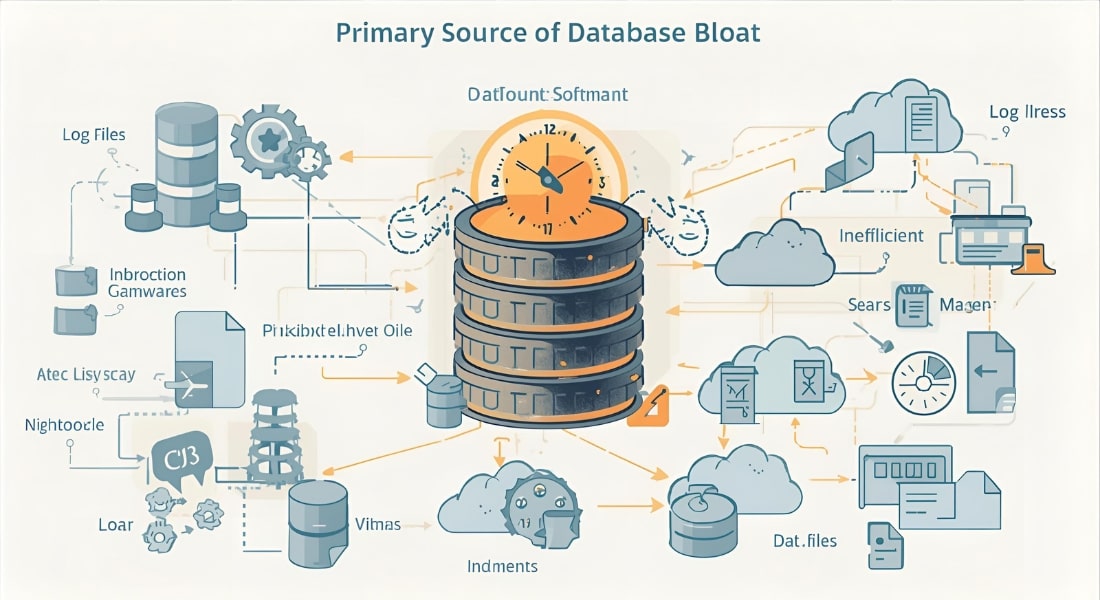
Primary Sources of Database Bloat
Database bloat is not a malicious attack; it’s a natural consequence of a busy, dynamic website. The following are the most common culprits.
1. Post Revisions and Auto-Drafts (The Revision Hoarder)
In WordPress, this is the most notorious source of bloat. By default, WordPress saves a new revision every time you click “Save Draft.”
- The Problem: A 2,000-word article might only use 50KB of space, but 50 revisions of that same article can consume over 2.5MB. Multiply this across hundreds of pages and posts, and the bloat quickly becomes overwhelming.
2. Transients and Session Data (The Cache Graveyard)
Transients are temporary, cached data records used by plugins and themes to store API responses, calculated data, or short-term settings to avoid repetitive database calls.
- The Problem: While transients are designed to expire, many plugins fail to clean them up properly. This leaves behind thousands of expired, unnecessary records that bloat the database and force the system to spend time checking their expiration dates. Session data (used for shopping carts or login management) also piles up if not regularly purged.
3. Comment Spam and Trash (The Unwanted Guests)
Even with robust spam filters, databases accumulate comments that land in the “Spam” or “Trash” tables.
- The Problem: While visually absent from the front-end, thousands of junk comments still occupy table rows. The database engine must still maintain and index these tables, even if the data is never served.
4. Plugin and Theme Metadata (The Digital Ghost)
When a plugin or theme is installed, it creates unique tables and metadata entries in existing tables (like wp_options or wp_usermeta).
- The Problem: When you uninstall a plugin, it often leaves behind its tables and orphaned metadata, typically to save user settings if you reinstall it later. This metadata—sometimes thousands of rows—is completely useless, yet it remains indexed and stored, contributing to bloat.
5. Log Files and Statistics
Plugins that track statistics, broken links, or security events (like failed login attempts) often store these records in the database.
- The Problem: A busy e-commerce site can generate hundreds of security or error logs hourly. If left unchecked, these tables can grow to gigabytes in size, overwhelming the database’s capacity for fast indexing.
How to Diagnose and Measure Bloat
To effectively combat bloat, you must first measure its severity and locate its source.
1. Database Size Check
The first, simplest check is the raw size.
- Action: Log into your hosting control panel (cPanel, Plesk) or phpMyAdmin. View the list of databases. While a large site might reasonably exceed 500MB, a simple blog that is over 1GB likely has severe bloat.
- Locate Bloated Tables: In phpMyAdmin, sort the tables by “Size”. You will quickly identify the largest offenders. For WordPress, the top bloat culprits are almost always
wp_options,wp_postmeta, and tables created by heavy plugins like security scanners or e-commerce suites.
2. Time-to-First-Byte (TTFB)
A high TTFB is often the external symptom of database bloat. TTFB measures how long the server takes to send the first byte of data after a request.
- Action: Use tools like GTmetrix or Google PageSpeed Insights. If your TTFB is consistently over 500ms, and especially if it spikes significantly when you access the admin dashboard, the server is struggling with database processing.
3. Query Monitor Tools
For advanced diagnosis, use a plugin like Query Monitor (for WordPress).
- Action: This tool displays the slowest database queries run on any given page. If a core query is taking an unusually long time, it confirms that the database engine is taking too long to scan tables due to clutter and fragmentation.
The Action Plan: Remediating Database Bloat
Remediation requires a multi-step process involving cleanup, optimization, and prevention. Always back up your entire database before performing any cleanup routine.

Step 1: Junk Data Cleanup (The Purge)
- Revisions: Limit the number of post revisions stored. Add the following line to your
wp-config.phpfile to limit revisions to, for example, five:PHPdefine( 'WP_POST_REVISIONS', 5 );Then, delete existing revisions using a plugin like WP-Optimize or direct SQL queries.
- Spam/Trash: Manually empty the trash and spam folders for comments and posts. Set WordPress to automatically empty the trash after a shorter period (e.g., 7 days).
- Transients: Use a cleanup tool to delete all expired transients.
Step 2: Plugin and Metadata Audit
- Remove Orphaned Data: When uninstalling a plugin, check its settings for an option to “Delete all data upon uninstallation.” Always enable this. For plugins already removed, you may need a specialized tool or direct SQL query to manually delete the orphaned tables and related metadata.
- Audit
wp_options: This is the most critical table. Use a tool to identify and delete any options entries (rows) left behind by uninstalled plugins. Look for option names that clearly reference old, unused plugin names.
Step 3: Database Optimization and Repair
Once junk data is removed, the physical structure of the database must be re-optimized to address fragmentation.
- Run Repair/Optimize Command: In phpMyAdmin, select your tables and run the “Optimize Table” command. This defragments the tables, physically shrinking the database files on the disk and ensuring data is stored sequentially for faster retrieval. Many optimization plugins automate this process.
Prevention: Keeping the Database Lean
Cleanup is only half the battle. Prevention is necessary to keep the bloat from returning.
- Disable Unnecessary Logging: Review any security, broken link, or statistics plugins. Configure them to only store logs for a short period (e.g., 30 days) or store logs in external files instead of the database.
- Scheduled Maintenance: Automate the cleanup process. Schedule a weekly or monthly task using your optimization plugin to automatically purge expired transients, trash, and optimize the tables.
- Use External Storage: For large static assets like images, videos, and PDFs, do not store these in the database (which some configurations do). Instead, use object storage services like Amazon S3 or a Content Delivery Network (CDN), keeping the database purely for text and configuration data.

Conclusion
Database bloat is the slow-motion performance killer of the modern web. It is the consequence of a dynamic website’s success—the inevitable accumulation of discarded revisions, forgotten transients, and orphaned metadata. By forcing the database engine to sift through this digital landfill, bloat drives up disk I/O, slows down query execution, and ultimately manifests as cripplingly slow page load times and admin panel lag. By systematically identifying the largest tables in phpMyAdmin, aggressively purging stale data, and implementing a recurring maintenance schedule to optimize fragmented tables, website owners can reclaim crucial server resources, ensure a low TTFB, and secure the long-term health and speed of their online presence.