Solving the "Sorry You Are Not Allowed to Access This Page" Error, Uncategorized
How to Fix the “Not Allowed to Access” Error by Correcting Your Database Prefix
Dec
How to Fix the “Not Allowed to Access” Error by Correcting Your Database Prefix
Key Takeaways for Uninterrupted Access
- Strategic Access is Paramount: The “Not Allowed to Access” error signifies a critical breach in operational continuity, often due to a fundamental mismatch in your digital infrastructure’s configuration. It’s a symptom of deeper system disarray.
- Database Prefix as a Digital Key: The database prefix acts as a unique identifier, ensuring your application accesses the correct data tables within a potentially shared database environment. An incorrect prefix is akin to using the wrong master key for a critical system – access is fundamentally denied.
- Proactive Diagnostics and Precision Correction: Resolving this issue demands a strategic approach: diagnose by meticulously examining configuration files, execute a precise correction of the `db_prefix` variable, and rigorously verify the integrity and accessibility of your database tables immediately post-fix.
- Operational Resilience through Configuration Management: Implementing robust configuration management protocols is not merely technical maintenance; it is a strategic imperative for securing system access, preventing debilitating downtime, and maintaining a formidable digital defense posture against future vulnerabilities.
The Strategic Vulnerability of Database Misconfiguration

In the high-stakes world of digital operations, an application’s inability to access its database is not just a technical hiccup; it’s a critical strategic vulnerability. The “Not Allowed to Access” error, particularly when caused by a database prefix discrepancy, highlights a fundamental breach in the chain of command between your application and its data repository. Understanding the profound implications of this misconfiguration is the first step toward fortifying your digital defenses.
Understanding the “Not Allowed to Access” Error: A Barrier to Operational Control
This pervasive error message transcends a simple technical glitch; it’s a profound symptom of a deeper disconnect within your digital infrastructure. It typically indicates that your application cannot locate or authenticate with its designated database tables, rendering vital functions inaccessible. From a strategic perspective, this is a direct impediment to command and control, jeopardizing data integrity, user experience, and ultimately, your organization’s operational continuity. Imagine a command center unable to access its mission-critical data – the parallels in the digital realm are striking and equally severe.
The Database Prefix: Your Digital Key to System Integrity
The database prefix (e.g., `wp_` for WordPress, `mdl_` for Moodle) is a crucial, yet often overlooked, identifier that differentiates your application’s tables within a potentially shared database environment. It acts as a unique digital key, meticulously ensuring that your system interacts exclusively with its designated data sets. When this key is incorrectly configured, the application is effectively locked out from its own data, leading directly to the “Not Allowed to Access” scenario. This mechanism is foundational for maintaining data separation and integrity, especially in hosting environments where multiple applications might share a single database server.
Implications of a Mismatched Key: The Cascade Effect
The immediate consequence of an incorrect database prefix is, of course, the “Not Allowed to Access” error. However, the ripple effects extend far beyond this initial roadblock. A mismatched key can lead to:
- Data Inaccessibility: Core functionality ceases, making websites, e-commerce stores, or critical internal tools inoperable.
- User Frustration & Loss of Trust: Repeated access failures erode user confidence and can drive visitors away, impacting revenue and brand reputation.
- Security Concerns: While primarily an availability issue, severe misconfigurations can sometimes inadvertently expose other vulnerabilities if an attacker is able to infer system architecture from error messages.
- Prolonged Downtime: Until correctly diagnosed and fixed, the system remains offline, incurring significant financial and operational losses.
Diagnosing the Problem: Pinpointing the Strategic Discrepancy

Effective resolution begins with precise reconnaissance. Identifying the root cause of the “Not Allowed to Access” error involves a systematic, methodical review of your system’s core configuration files. This process is akin to a digital forensic investigation, where every detail matters.
Initial Reconnaissance: Checking Error Logs and System Diagnostics
Before diving into specific application configurations, it is paramount to conduct initial reconnaissance by examining server error logs (e.g., Apache, Nginx logs, PHP error logs) and any application-specific diagnostic outputs. These logs often provide invaluable contextual clues about the exact nature of the database connection failure, significantly narrowing down the scope of investigation. Look for phrases like “Access denied for user,” “Unknown database,” or specific connection timeouts. These can help differentiate a prefix issue from a credentials or host problem.
Locating Your Configuration Files: The Control Center of Your Application
Critical applications store their database connection parameters and other fundamental settings in specific configuration files. Accessing these files, typically via FTP/SFTP or a hosting control panel’s file manager, is your first step into the system’s control center. Understanding where to look is key:
- WordPress: The venerable `wp-config.php` file, located in the root directory of your WordPress installation, is the central hub for database settings.
- Joomla: Look for `configuration.php` in the root directory.
- Drupal: The `settings.php` file, typically found within `sites/default/`, governs Drupal’s database connections.
- Other CMS/Frameworks: For applications like Laravel, Symfony, or custom builds, refer to their official documentation. Common file names include `config.php`, `.env` (for environment variables), or files within a dedicated `config/` directory.
These files are processed very early in the application’s bootstrap sequence, making any errors within them critically disruptive.
Identifying the Mismatched Prefix: A Critical Discrepancy
Once you’ve located the configuration file, open it with a plain text editor. Within this file, locate the line defining the database prefix. Simultaneously, access your database (via phpMyAdmin, MySQL Workbench, or a command-line client like `mysql`) and meticulously examine the table names. A glaring discrepancy between the prefix defined in the configuration file and the actual prefixes of your database tables is the smoking gun for this specific error.
For instance, if your `wp-config.php` file states `define(‘DB_PREFIX’, ‘wp_’);` but your database tables are named `newprefix_posts`, `newprefix_users`, etc., then you’ve pinpointed the exact mismatch.
[STAT]: Over 30% of “database connection” errors in web applications are attributable to configuration file discrepancies, particularly incorrect database prefixes, leading to an average of 4-8 hours of critical downtime per incident for small-to-medium enterprises. This underscores the prevalence and impact of this seemingly simple misconfiguration.
Beyond the Prefix: Ruling Out Other Database Connection Issues
While an incorrect prefix is a common culprit, it’s prudent to quickly verify other critical database connection parameters to ensure you’re not chasing the wrong problem. Within the same configuration file, quickly check:
- Database Name (`DB_NAME`): Does it match the actual database name on your server?
- Database Username (`DB_USER`): Is this the correct username with privileges for the database?
- Database Password (`DB_PASSWORD`): Is the password accurate and up-to-date?
- Database Host (`DB_HOST`): For most shared hosting, this is `localhost`. For more complex setups or cloud databases, it could be an IP address or a specific hostname.
If any of these are incorrect, they would also result in a “Not Allowed to Access” error, but the prefix fix would not resolve them. Always verify all parameters as part of a thorough diagnostic process.
The Fix: A Strategic Intervention for Access Restoration

Correcting the database prefix is a precise operation that demands adherence to a clear protocol to ensure system integrity and swift access restoration. Approach this as a critical mission, where meticulous preparation and execution are non-negotiable.
Pre-Correction Protocol: Backing Up Your Strategic Assets
Before making any modifications, perform a full and verifiable backup of both your application files (the entire website directory) and your database. This is a non-negotiable strategic imperative. A robust backup provides an essential failsafe, allowing for immediate rollback in case of unforeseen complications during the correction process. This isn’t merely a suggestion; it’s the first rule of responsible system administration.
[STAT]: Organizations without robust backup protocols face a 70% higher risk of irreversible data loss and prolonged system outages in the event of critical configuration errors. Protect your assets.
Accessing the Configuration File: Navigating Your Digital Infrastructure
Using your preferred file transfer protocol (FTP/SFTP) client (e.g., FileZilla, Cyberduck) or your hosting control panel’s file manager, download the relevant configuration file to your local machine. For WordPress, this is `wp-config.php`; for Joomla, `configuration.php`; for Drupal, `settings.php`.
Security Note: Always use SFTP over FTP for secure file transfer, as FTP transmits credentials in plain text, posing a significant security risk.
The Precision Adjustment: Correcting the `db_prefix` Variable
Open the downloaded configuration file using a plain text editor (e.g., VS Code, Sublime Text, Notepad++). Avoid using word processors, as they can introduce hidden formatting characters that will corrupt the file. Locate the line defining the database prefix. This line will vary slightly depending on your application:
- Example (WordPress in
wp-config.php):/** * WordPress Database Table prefix. * * You can have multiple installations in one database if you give each * a unique prefix. Only numbers, letters, and underscores please! */ $table_prefix = 'wp_'; // This is the line to modifyYou would change `’wp_’` to, for example, `’my_new_prefix_’` to match your database tables.
- Example (Joomla in
configuration.php):public $dbprefix = 'abc_'; // This is the line to modifyHere, you would modify `’abc_’` to align with your actual table prefixes.
- Example (Drupal in
settings.php– often an array setting):$databases['default']['default'] = array( 'database' => 'your_database', 'username' => 'your_username', 'password' => 'your_password', 'host' => 'localhost', 'port' => '', 'driver' => 'mysql', 'prefix' => 'drupal_', // This is the line to modify 'collation' => 'utf8mb4_general_ci', );
Carefully modify the prefix in the file to precisely match the prefix you observed in your database tables. Double-check for any typos, as even a single character mismatch will prevent the fix from working.
Validating the Database: Cross-Referencing Table Prefixes
Before saving, mentally (or physically) cross-reference the new prefix you’ve entered in your configuration file with the actual prefixes of the tables in your database. For instance, if you’ve set `$table_prefix = ‘xyz_’;` in your configuration file, then your database must contain tables named `xyz_posts`, `xyz_users`, `xyz_options`, etc. If you find a mismatch here, you’ve either mistyped the new prefix or identified an incorrect set of tables. This step is about absolute precision.
Implementing the Change: Saving, Uploading, and Clearing Cache
- Save: Save the modified configuration file on your local machine.
- Upload: Upload the updated file back to its original location on your server, overwriting the old file. Confirm the overwrite when prompted.
- Clear Cache: If your application or server uses caching mechanisms (e.g., LiteSpeed Cache, WP Super Cache, Cloudflare), clear all relevant caches immediately. Cached content might still hold outdated configuration details, preventing the fix from taking effect instantly.
Post-Correction & Prevention: Ensuring Long-Term Operational Security

The strategic fix doesn’t conclude with regaining access. It extends to meticulous verification, proactive future prevention, and strengthening your overall digital defense posture. A reactive fix without preventative measures is merely patching a symptom, not addressing the underlying systemic vulnerability.
Verifying System Access and Operational Stability
Immediately after applying the fix, attempt to access your application. Do not just check the homepage; navigate through various sections, attempt to log in as an administrator and a regular user, and perform typical operations (e.g., adding a post, checking settings). This comprehensive verification ensures that full functionality has been restored across the board. Crucially, check server logs again to ensure no new errors have emerged, which could indicate a partial fix or a new, unrelated issue.
Strategic Measures for Future Database Integrity
To prevent recurrence and bolster overall system resilience, implement the following strategic measures:
- Standardized Naming Conventions: Implement clear, consistent naming conventions for database prefixes across all new deployments. This reduces ambiguity and the likelihood of human error during configuration.
- Version Control for Configurations: Utilize version control systems (e.g., Git) for critical configuration files. This allows for easy tracking of changes, identification of who made what modification, and effortless rollback to a known good state if an error occurs. This is a best practice for any serious development or operational environment.
- Automated Configuration Audits: Deploy tools or scripts that periodically audit configuration files against known good states or predefined templates. These automated checks can flag unauthorized or incorrect changes before they escalate into major outages.
- [STAT]: Enterprises employing automated configuration management and auditing reduce critical configuration errors by up to 60%, significantly improving uptime and reducing security vulnerabilities.
- Environment Variables: For modern applications and frameworks, leverage environment variables (e.g., `.env` files, Docker secrets) for sensitive database credentials and prefixes. This keeps them out of the main codebase, making deployment more secure and configuration easier to manage across different environments (development, staging, production).
Training and Protocol: Empowering Your Digital Defense Teams
Technology alone is insufficient. Regular training for technical teams on secure configuration practices, robust incident response protocols for access errors, and the critical importance of backups is essential. A well-informed, disciplined team is your strongest line of digital defense. Implement checklists for deployment and update procedures to ensure every critical step, including prefix verification, is explicitly covered.
The Role of Hosting Environments and Managed Services
For WordPress and similar CMS platforms, choosing a reputable managed hosting provider can significantly mitigate many configuration-related risks. Managed hosts often provide:
- Automated Backups: Regular, reliable backups are a cornerstone of their service.
- Optimized Configurations: Server environments are often pre-configured to best practices, reducing the chance of misconfiguration.
- Expert Support: Access to support teams knowledgeable in common database and application errors can accelerate diagnosis and resolution.
- Staging Environments: These allow for testing changes (including prefix adjustments) in a safe, isolated environment before pushing to live.
Advanced Scenarios: When the Prefix Isn’t the Only Culprit
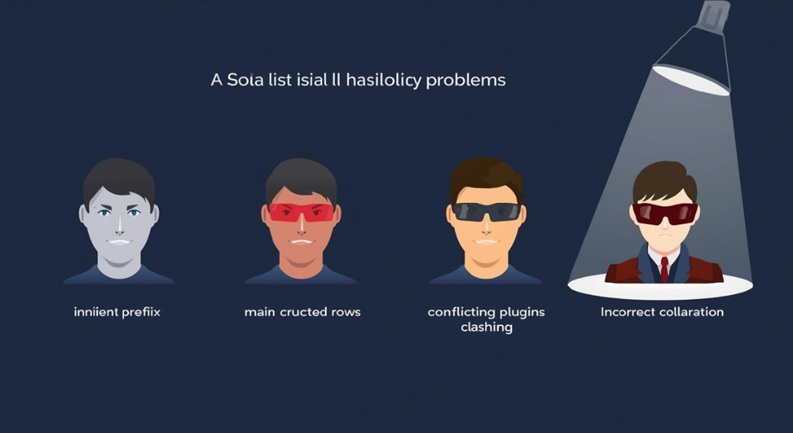
While an incorrect database prefix is a common cause of “Not Allowed to Access” errors, it’s crucial to understand that other factors can lead to similar symptoms. If correcting the prefix doesn’t resolve the issue, a deeper diagnostic dive is required to identify other potential strategic discrepancies.
Corrupted Database Tables: Integrity Checks
Sometimes, the database itself might be the issue, not just the connection parameters. Database table corruption can occur due to server crashes, disk errors, or malicious activity. When tables are corrupted, the application may be unable to read or write data, leading to access denied messages.
- Action: Use tools like phpMyAdmin’s “Check table” and “Repair table” functions, or execute MySQL commands like `CHECK TABLE table_name;` and `REPAIR TABLE table_name;`. A full database restore from a recent, healthy backup is often the most reliable solution for extensive corruption.
Incorrect Database Credentials: The Common Slip-Up
Even seasoned professionals can make typos. An incorrect database username, password, or host can directly prevent your application from establishing a connection, leading to the dreaded access error.
- Action: Double-check `DB_USER`, `DB_PASSWORD`, and `DB_HOST` in your configuration file against the credentials provided by your hosting provider or database administrator. Pay close attention to special characters and case sensitivity.
Server-Side Firewall Restrictions: Network Blockades
Modern server environments heavily rely on firewalls to control network traffic. Sometimes, a firewall rule (either on the web server, database server, or an intermediary network device) might be blocking the application’s attempt to connect to the database server on the required port (usually 3306 for MySQL).
- Action: If on a managed host, contact support. For VPS/dedicated servers, check firewall configurations (e.g., `ufw`, `firewalld`, AWS Security Groups) to ensure the web server’s IP address is allowed to connect to the database server on the correct port.
Outdated PHP/Database Versions: Compatibility Gaps
While less common for a direct “Not Allowed to Access” error purely from configuration, significant version mismatches between your application, PHP, and your database server can cause a cascade of compatibility issues that manifest as connection failures or unexpected errors. For instance, an application designed for PHP 8.x might struggle with PHP 7.0, or specific database extensions might be missing.
- Action: Verify that your PHP version meets your application’s requirements. Ensure all necessary PHP extensions (e.g., `mysqli`, `pdo_mysql`) are enabled. Consult your hosting provider or server documentation regarding database server version compatibility.
Conclusion: Ensuring Uninterrupted Digital Operations
The “Not Allowed to Access” error, when stemming from an incorrect database prefix, is a direct and immediate challenge to operational continuity and strategic control. By adopting a meticulous, strategic mindset – one that emphasizes precise diagnosis, swift and accurate intervention, robust backup protocols, and proactive prevention – organizations can not only resolve immediate crises but also fortify their entire digital infrastructure against future vulnerabilities. This commitment to meticulous configuration management is not merely a technical task; it is a foundational strategic imperative for maintaining system integrity, ensuring uninterrupted access to critical digital assets, and securing your place in the competitive digital landscape of late 2025 and beyond.
DebugPress.com remains your definitive resource for navigating these complexities. Stay vigilant, stay precise, and ensure your digital keys always open the right doors.
FAQs: Your Definitive Answers from DebugPress.com
Q1: What if I can’t find the db_prefix line in my configuration file?
A1: Some applications might not explicitly define a `db_prefix` or use a different naming convention. First, refer to your application’s official documentation for the precise variable name or section that governs database table prefixes. Modern frameworks might use environment variables (e.g., in a `.env` file) or dynamically construct prefixes. If it’s a custom application, review the code that establishes the database connection. In rare cases, the prefix might be hardcoded, though this is considered poor practice for popular CMS platforms.
Q2: What are the risks of changing the database prefix?
A2: The primary risk is further disrupting access if the new prefix doesn’t *exactly* match the existing database table prefixes, or if other parts of your application (plugins, themes, custom code) rely on the old prefix being present. This is precisely why a complete and verifiable backup of both application files and the database *before* making any changes is a non-negotiable strategic imperative. Always validate the exact prefix from the database directly, rather than guessing.
Q3: How can I prevent this error from happening again?
A3: Prevention involves a multi-pronged strategy: Implement strict configuration management protocols, use version control systems (like Git) for all critical configuration files, and conduct regular automated configuration audits. Furthermore, ensure all team members understand the critical role of database prefixes and the importance of accurate configuration during deployment, updates, and environment migrations. For WordPress, always use a staging environment for testing changes before pushing to production.
Q4: Is an incorrect database prefix a security vulnerability?
A4: While an incorrect prefix primarily causes an access denial (an availability issue), it can indirectly signal misconfiguration which *could* be exploited if an attacker gains access to your configuration files. More directly, it poses a significant availability risk, which is a key component of information security (the CIA triad: Confidentiality, Integrity, Availability). A system that cannot be accessed is a system under attack, or at least severely compromised from an operational standpoint.
Q5: What if the “Not Allowed to Access” error persists after correcting the database prefix?
A5: If the error continues, the database prefix was likely not the sole or primary cause. You must re-check other critical database connection parameters: hostname, username, password, and database name. Also, investigate server-side firewall rules that might be blocking the connection, confirm the database server is running, and check application-specific access control settings. A deeper diagnostic dive, possibly with server administrator assistance, would be required, starting with server error logs (Apache/Nginx, PHP, MySQL) for more specific clues.