
Troubleshooting Common WooCommerce Checkout Page Errors
How to Fix the “No Payment Options Available” Error at Checkout
Oct
Few things are more frustrating for an e-commerce store owner than seeing a customer reach the final step of the purchasing journey—the checkout page—only to be met with the cold, hard message: “No Payment Options Available.” This is the digital equivalent of a shop closing its doors just as a buyer reaches the counter, resulting in an immediate loss of revenue and a severely damaged customer experience.
The “No Payment Options Available” error, or a variation of it, is a common issue across all e-commerce platforms, including WooCommerce, Shopify, Magento, and custom builds. It rarely signifies a catastrophic failure; rather, it indicates a mismatch between the buyer’s criteria and the platform’s configured rules. This error acts as a rigid gatekeeper, preventing the transaction because one or more crucial conditions—related to location, currency, shipping, or inventory—have not been met or correctly configured.
Diagnosing this error requires a systematic, step-by-step investigation of your store’s backend logistics and payment gateway settings. This comprehensive guide will explain the five primary causes of this error and provide an actionable, platform-agnostic roadmap to help you find the root cause and ensure a smooth, revenue-generating checkout process.
Understanding the Core Problem: The Logic Mismatch
Before diving into troubleshooting, it’s essential to understand why the system is actively hiding payment methods. Payment gateways are designed to be conditional. They will only show up if all of the following conditions are true:
- The Method is Active: The payment gateway (e.g., PayPal, Stripe, Cash on Delivery) is enabled in the backend settings.
- The Geolocation Matches: The customer’s shipping/billing country is one the payment method is configured to accept.
- The Cart Meets Requirements: The cart total, items, or currency meets the minimum/maximum limits set for that payment method.
- The Shipping Method Exists: A valid shipping method and rate have been calculated for the customer’s address, as some payment rules depend on the shipping zone.
The “No Payment Options Available” error occurs when the cart fails to satisfy any single available payment method’s conditions.
Primary Cause 1: Shipping Zone and Location Restrictions
This is by far the most common cause of the error. Payment methods are often linked directly to shipping zones.

Diagnosis Steps
- Check Shipping Zones vs. Customer Address:
- The Problem: The customer is attempting to ship the order to a country or state that is not included in any of your active Shipping Zones. If the system cannot calculate a shipping rate, it often cannot proceed to payment.
- Action: Go to your Shipping settings (e.g., WooCommerce: WooCommerce > Settings > Shipping). Verify that the customer’s country/region (e.g., India, Maharashtra) is correctly defined within a shipping zone, and that at least one shipping method (e.g., Flat Rate, Free Shipping) is enabled for that zone.
- Check Payment Method Country Restrictions:
- The Problem: Many payment gateways (especially region-specific ones like a local Indian bank transfer option or a specific European gateway) are configured to operate in only a few countries.
- Action: Go to the Payment Gateway settings (e.g., Stripe, PayPal). Look for a setting that says “Limit acceptance to specific countries” or “Allowed Countries.” If the customer’s country is not listed, the option will be hidden.
Fixes
- Expand Shipping Zones: Create a “Rest of the World” zone with an appropriate shipping method if you ship internationally, or ensure all domestic states/union territories are covered.
- Review Gateway Geolocation: If you only ship within India, ensure your payment gateways are configured to accept only India. If you ship internationally, ensure they accept the relevant global regions.
Primary Cause 2: Currency and Gateway Mismatch
E-commerce stores often run into trouble when the store’s base currency doesn’t align with the payment gateway’s supported currency.
Diagnosis Steps
- Check Base Currency:
- The Problem: Your store’s base currency is set to USD (US Dollar) in the general settings, but your primary Indian payment gateway (e.g., a specific Razorpay integration) is only configured to accept INR (Indian Rupee) transactions.
- Action: Go to your store’s general settings (WooCommerce > Settings > General). Verify the currency is correct (e.g., INR).
- Check Multi-Currency Configuration (If Applicable):
- The Problem: If you use a multi-currency plugin (e.g., for global sales) that allows customers to view prices in EUR, but the final checkout process must happen in the store’s base currency (INR) through a specific gateway, the gateway might reject the EUR transaction.
- Action: Review the multi-currency plugin’s settings. Ensure that the payment gateway is correctly configured to accept the currency the customer is currently using, or force a conversion back to the base currency just before the payment button is displayed.
Fixes
- Standardize Currency: Ensure the currency set in the store’s core settings matches the currency accepted by your active payment gateways.
- Test with Conversion: If using a currency switcher, temporarily disable it and test a purchase in the base currency to isolate the error to the conversion process.
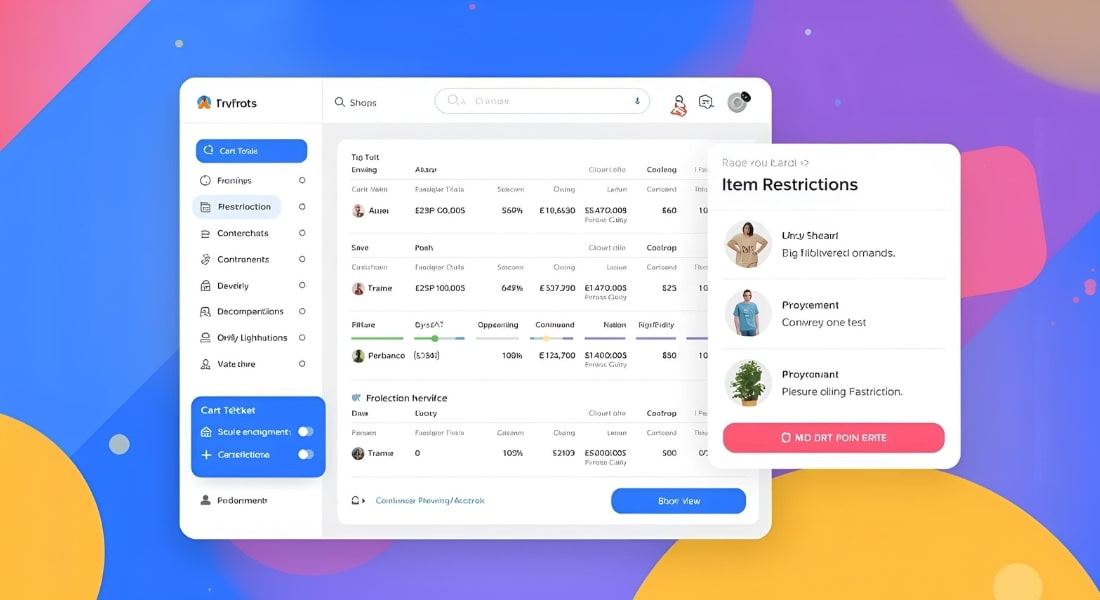
Primary Cause 3: Cart Totals and Item Restrictions
Payment methods often have specific requirements related to the contents or value of the cart.
Diagnosis Steps
- Check Minimum/Maximum Cart Limits:
- The Problem: You might have set a minimum order value of $50 for PayPal, but the customer’s cart is only $45. Or, you might have set a maximum limit of $5,000 for a local bank transfer.
- Action: Go to the individual payment gateway settings (e.g., WooCommerce > Settings > Payments > [Gateway Name]). Look for fields like “Min. order total” or “Max. order total.” Ensure the cart value falls within the acceptable range for at least one active payment method.
- Check Item/Product Category Restrictions:
- The Problem: Some store owners use specific payment methods (like “Cash on Delivery”) only for certain product categories or only when the cart contains non-virtual items. If a cart contains a restricted item, the gateway may be hidden.
- Action: Review the settings of the payment method (often found in advanced plugin settings). Ensure there are no hidden rules that exclude the specific product(s) currently in the test cart.
- Zero-Value Cart:
- The Problem: If the customer uses a coupon that discounts the cart total to exactly ₹0.00, most payment gateways (Stripe, PayPal, etc.) will disappear because they cannot process a zero-value transaction.
- Action: In this specific case, you must enable the “Free Payment” or “Check Payment” option and ensure it is configured to appear for ₹0.00 orders.
Fixes
- Adjust Limits: Lower or remove the minimum/maximum transaction limits for your main payment method during testing.
- Enable Free Order Payment: If the error occurs after a coupon is applied, ensure you have a dedicated Free Order payment method enabled.
Primary Cause 4: Code Conflicts and API Connection Errors
If the settings appear correct, the error may stem from a failure to communicate with the payment processor or a conflict with other code.
Diagnosis Steps
- Check API Keys and Credentials:
- The Problem: The most popular gateways (Stripe, Razorpay, etc.) require a secure connection using public and secret API keys. If these keys are incorrect, expired, or switched between “Test” and “Live” modes incorrectly, the connection fails.
- Action: Go to your payment gateway dashboard (e.g., the Stripe developer page) and your plugin settings. Copy and paste the Live API keys again, ensuring no hidden spaces or characters are included.
- Check Plugin/Theme Conflicts (Platform-Specific):
- The Problem: Another active plugin (e.g., a caching plugin, a currency switcher, or a checkout field editor) is interfering with the payment gateway’s code, preventing it from executing and displaying.
- Action (WooCommerce/WordPress): Temporarily switch your theme to a default theme (like Storefront or Twenty Twenty-Four) and disable all plugins except WooCommerce and the payment gateway in question. If the payment option reappears, re-enable the other plugins one by one until the conflict is found.
- SSL/HTTPS Status:
- The Problem: Payment gateways often require a secure HTTPS connection. If your site’s SSL certificate is expired or improperly configured, the browser may block the payment script.
- Action: Ensure your site loads using
https://and that the SSL certificate is valid (look for the padlock icon in the browser bar).
Fixes
- Regenerate Keys: Generate a new set of Live API keys in your payment processor’s dashboard and update the plugin settings.
- Isolate Conflict: If a plugin conflict is confirmed, contact the developer of the conflicting plugin for a fix or seek an alternative.
Primary Cause 5: Inventory and Stock Status
While rare, inventory issues can hide payment options, especially for integrated systems.
Diagnosis Steps
- Check Stock Status:
- The Problem: A customer might add an item to the cart, but a rapid sale event means the stock level drops to zero before they reach the checkout page. The system recognizes the item is unavailable.
- Action: Go to the product page and verify that the item(s) in the cart are still “In Stock.”
- Check Product Visibility:
- The Problem: If a product is set to “Hidden” or “Private,” some payment gateways may be configured to disappear when such products are in the cart.
- Action: Ensure all products in the cart are publicly visible and available for purchase.
Fixes
- Clear Caches: Clear all server, plugin, and browser caches to ensure the store is displaying the most up-to-date inventory levels.

Final Troubleshooting Strategy (The Golden Rule)
The most effective way to troubleshoot the “No Payment Options Available” error is to use the Process of Elimination.
- Test Environment: Always perform your initial diagnostic testing in the secure, private environment of your Admin Account while logged in.
- Enable All Options: For testing purposes, temporarily enable all available payment methods (even methods you don’t intend to use, like Check Payment or Bank Transfer) and remove all minimum/maximum limits.
- Test Baseline: Create a clean cart and proceed to checkout. If an option now appears, one of the limits you removed was the problem.
- Isolate the Limit: Re-enable the limits (Location, Currency, Cart Total) one at a time, testing the checkout after each change, until the payment option disappears. The last change you made is the source of the error.
By systematically examining the five core areas—Shipping, Currency, Cart Limits, API Connections, and Inventory—store owners can quickly transition from troubleshooting an error to generating revenue, ensuring that customers always have a clear path to complete their purchase.